> ## Documentation Index
> Fetch the complete documentation index at: https://docs.squadvault.xyz/llms.txt
> Use this file to discover all available pages before exploring further.
# SquadVault docs
> Learn how to run your esports organization in SquadVault — from first setup to day-to-day workflows and the Public API.
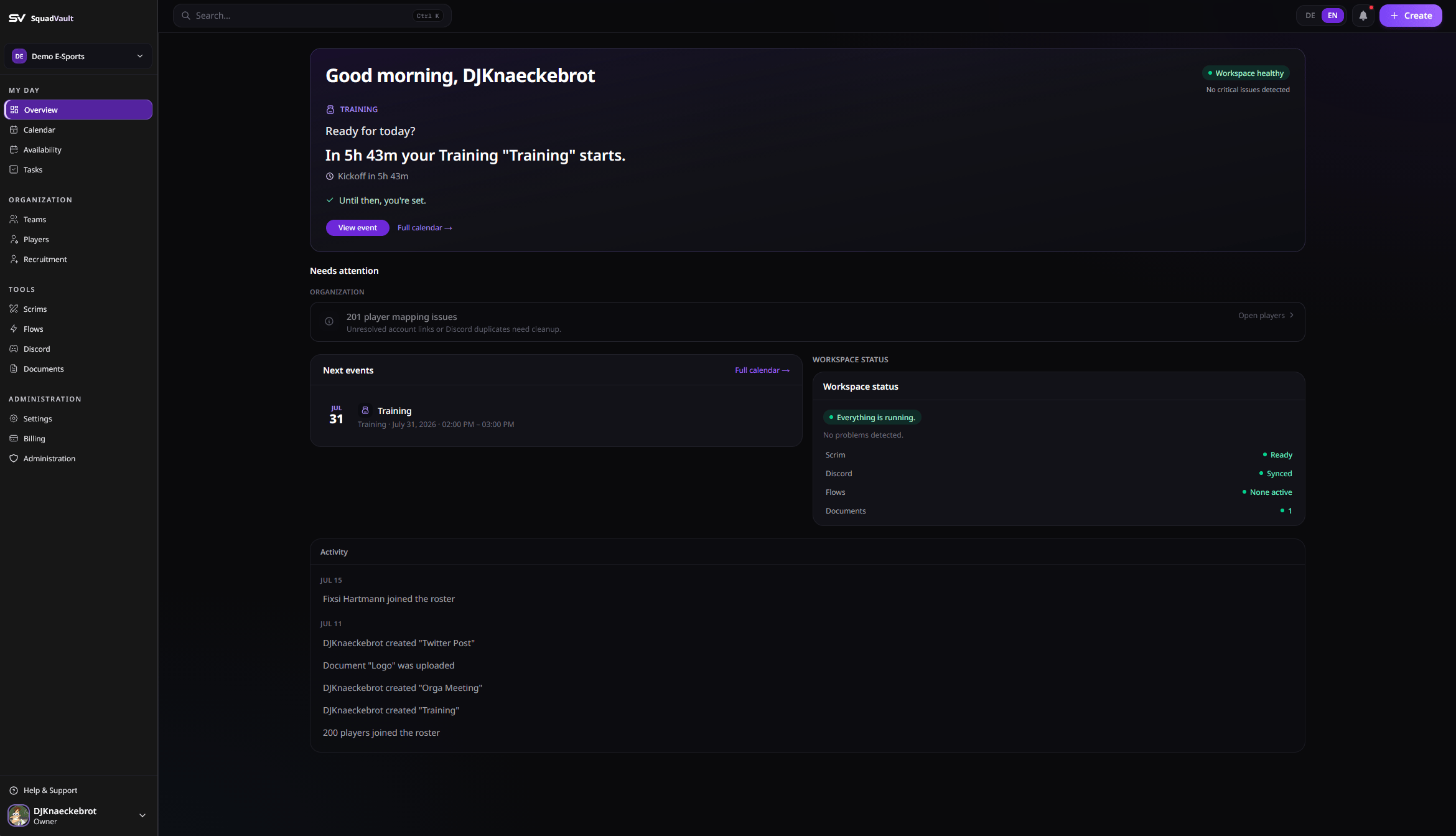
SquadVault is the workspace for esports organizations. Keep your roster, schedule, tryouts, and Discord in sync — so your team always knows what’s next.
Every main page answers the same three questions, in order:
1. **How is the current state?** (Status)
2. **What should I work on?** (Work)
3. **What does SquadVault recommend next?** (Insights)
Set up your account and organization, invite your team, and run the week.
Connect your own tools with organization API keys.
 ## What you can do
* Keep teams, players, and gamer tags up to date
* Plan scrims and training on a shared calendar
* Run Mission Control for booked scrims (prep, lobby, results)
* Collect availability before you schedule
* Run tryouts from a public apply link
* Store playbooks and contracts in Documents
* Sync Discord roles with your roster
* Check integration health (Discord, tags, webhooks, API keys)
* Automate follow-ups with Flows
* Review who changed what in the Audit log (admins)
## Get ready in three steps
Sign up, confirm your profile, and create your organization (name, URL slug, and logo). See [Getting started](/user-guide/getting-started).
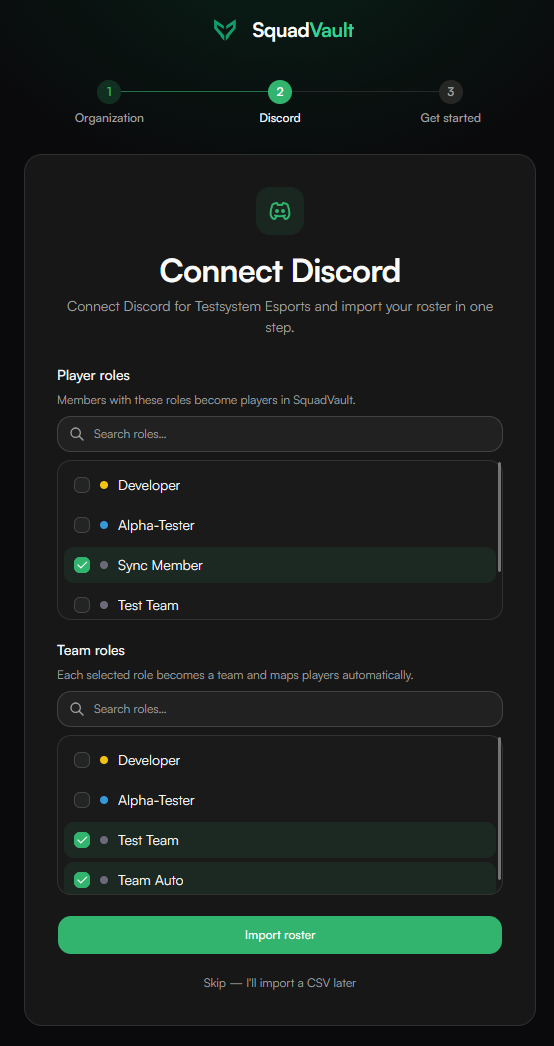
Link the server, confirm player and team roles, import. Two clicks after Discord is connected — you’re onboarded. See [Getting started](/user-guide/getting-started).
Invite staff, turn on a Flow template, then use Calendar and Availability. See [Teams and players](/user-guide/teams-and-players).
## What you can do
* Keep teams, players, and gamer tags up to date
* Plan scrims and training on a shared calendar
* Run Mission Control for booked scrims (prep, lobby, results)
* Collect availability before you schedule
* Run tryouts from a public apply link
* Store playbooks and contracts in Documents
* Sync Discord roles with your roster
* Check integration health (Discord, tags, webhooks, API keys)
* Automate follow-ups with Flows
* Review who changed what in the Audit log (admins)
## Get ready in three steps
Sign up, confirm your profile, and create your organization (name, URL slug, and logo). See [Getting started](/user-guide/getting-started).
Link the server, confirm player and team roles, import. Two clicks after Discord is connected — you’re onboarded. See [Getting started](/user-guide/getting-started).
Invite staff, turn on a Flow template, then use Calendar and Availability. See [Teams and players](/user-guide/teams-and-players).
 Need help? Email [hello@squadvault.xyz](mailto:hello@squadvault.xyz) or check the [FAQ](/user-guide/faq).