> ## Documentation Index
> Fetch the complete documentation index at: https://docs.squadvault.xyz/llms.txt
> Use this file to discover all available pages before exploring further.
# Feedback
> Create organization surveys, collect member or public responses, and review answers in one place.
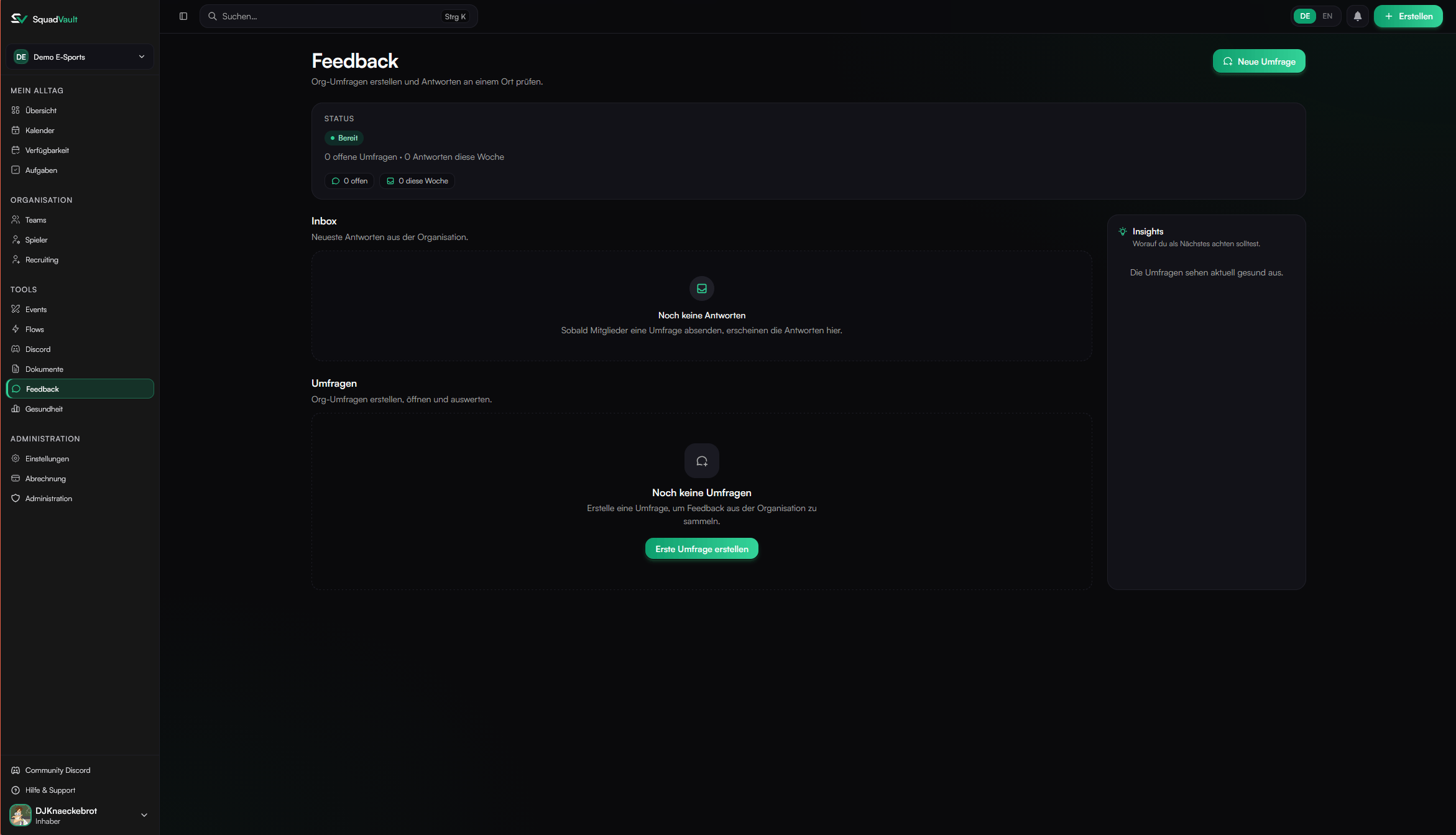
Open **Feedback** in the sidebar under Tools. The page follows SquadVault’s usual order: **status** first, then **work**, then **insights**.
Feedback surveys are for the organization — post-event check-ins, coach feedback, or any structured questions you need answered. They are separate from [Recruitment](/user-guide/recruitment) apply forms.
 ## How the page is organized
1. **Status** — Open surveys and response health this week.
2. **Work**
* **Staff** (owners, admins, managers) — Inbox of latest answers, then the full survey list.
* **Members** — Open surveys waiting for your response.
3. **Insights** — Up to three recommendations (low response rate, closing soon with gaps, no responses yet, or a survey waiting on you).
## Create a survey
1. Open **Feedback** and click **New survey** (requires create permission and the Feedback feature on your plan).
2. In the **Builder** tab, set title, description, optional close time, **privacy** (SquadVault or your own URL), and access:
* **Members only** — Signed-in organization members.
* **Public** — Anyone with the link (no SquadVault account).
3. Add questions (short text, long text, number, date, checkbox, select, rating).
4. Save changes with the unsaved-changes bar at the bottom.
5. Click **Open survey** when you are ready to collect answers.
A privacy policy is required before a survey can be opened. Choose **Use SquadVault privacy** (common for teams without a website) or link your own privacy policy. New surveys can copy the default privacy URL from [Organization settings](/user-guide/organizations#public-pages). Respondents always see who is responsible and must confirm the policy. SquadVault only hosts the form technically.
Draft and closed surveys do not accept responses. Public links only work while the survey is open.
## Respond
* **Members** open a survey from Feedback and submit once while it is open.
* **Public** respondents use `/survey/{orgSlug}/{formId}` (or the copied public link from the builder).
* After submit, answers are read-only for that person.
Staff can open the **Responses** tab on a survey to review submissions.
## Public cover image (plan feature)
With **custom survey branding** on your plan, public surveys can show one cover image above the title:
1. Set access to **Public**.
2. Upload an image (JPEG, PNG, WebP, or GIF · max 5 MB).
3. Choose **Show on public page** or hide it without deleting the file.
4. Save. Uploading a new image replaces the previous one.
Without that feature, the upgrade banner appears in the builder; the rest of Feedback still works if your plan includes Feedback surveys.
## Tips
* Keep surveys open only while you are actively collecting answers.
* Prefer a few required questions over long forms.
* Use insights to chase low response rates before a close date.
* Delete a survey only when you no longer need its responses — deletion cannot be undone.
## How the page is organized
1. **Status** — Open surveys and response health this week.
2. **Work**
* **Staff** (owners, admins, managers) — Inbox of latest answers, then the full survey list.
* **Members** — Open surveys waiting for your response.
3. **Insights** — Up to three recommendations (low response rate, closing soon with gaps, no responses yet, or a survey waiting on you).
## Create a survey
1. Open **Feedback** and click **New survey** (requires create permission and the Feedback feature on your plan).
2. In the **Builder** tab, set title, description, optional close time, **privacy** (SquadVault or your own URL), and access:
* **Members only** — Signed-in organization members.
* **Public** — Anyone with the link (no SquadVault account).
3. Add questions (short text, long text, number, date, checkbox, select, rating).
4. Save changes with the unsaved-changes bar at the bottom.
5. Click **Open survey** when you are ready to collect answers.
A privacy policy is required before a survey can be opened. Choose **Use SquadVault privacy** (common for teams without a website) or link your own privacy policy. New surveys can copy the default privacy URL from [Organization settings](/user-guide/organizations#public-pages). Respondents always see who is responsible and must confirm the policy. SquadVault only hosts the form technically.
Draft and closed surveys do not accept responses. Public links only work while the survey is open.
## Respond
* **Members** open a survey from Feedback and submit once while it is open.
* **Public** respondents use `/survey/{orgSlug}/{formId}` (or the copied public link from the builder).
* After submit, answers are read-only for that person.
Staff can open the **Responses** tab on a survey to review submissions.
## Public cover image (plan feature)
With **custom survey branding** on your plan, public surveys can show one cover image above the title:
1. Set access to **Public**.
2. Upload an image (JPEG, PNG, WebP, or GIF · max 5 MB).
3. Choose **Show on public page** or hide it without deleting the file.
4. Save. Uploading a new image replaces the previous one.
Without that feature, the upgrade banner appears in the builder; the rest of Feedback still works if your plan includes Feedback surveys.
## Tips
* Keep surveys open only while you are actively collecting answers.
* Prefer a few required questions over long forms.
* Use insights to chase low response rates before a close date.
* Delete a survey only when you no longer need its responses — deletion cannot be undone.