> ## Documentation Index
> Fetch the complete documentation index at: https://docs.squadvault.xyz/llms.txt
> Use this file to discover all available pages before exploring further.
# Flows
> Automate Discord setup, notifications, and roster reactions with Trigger, Only if, and Then.
Flows run when something happens in SquadVault — for example a team is created or a player joins a roster — or **on a schedule** you choose, and then execute a sequence of steps.
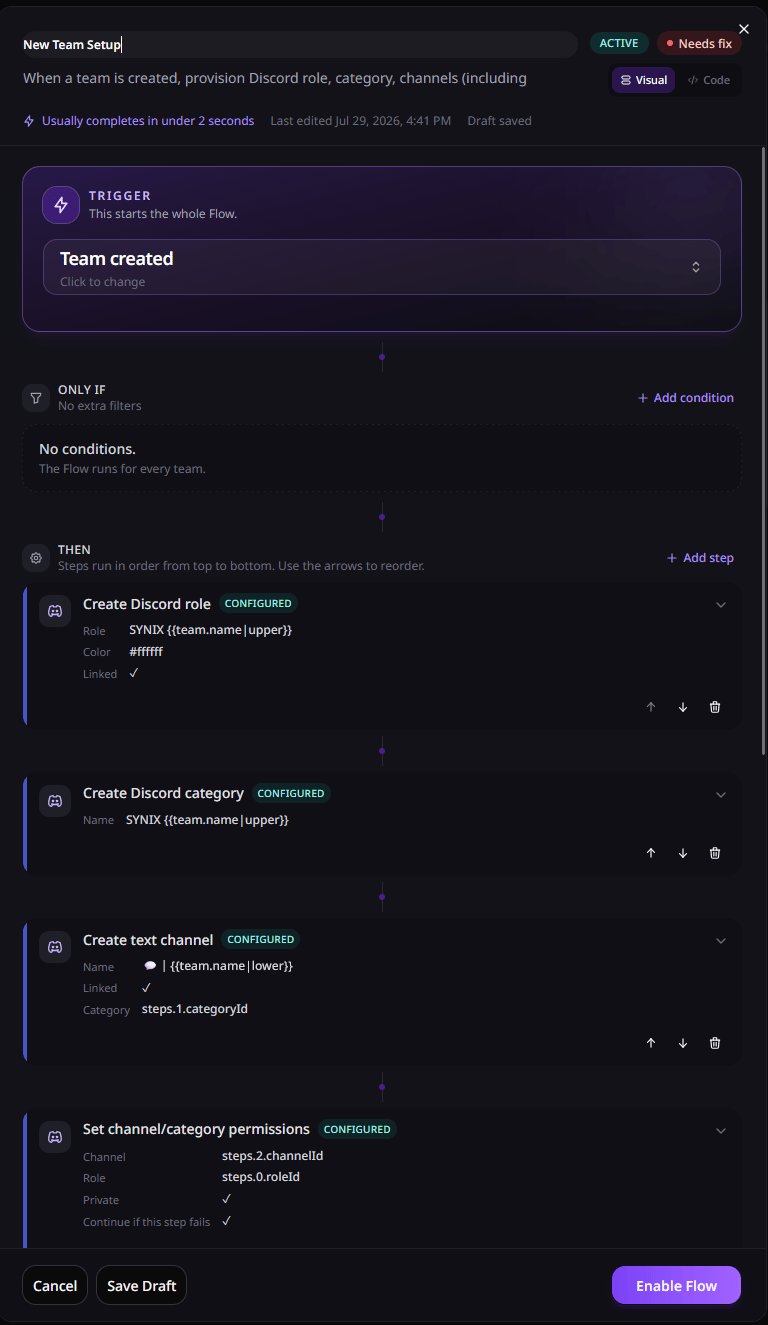
In the builder, everyday language is used: **Trigger** (when / schedule), **Only if** (optional filters), **Then** (what to do).
Flows require the Flows feature on your plan. See [Billing](/user-guide/billing) if the page is locked.
## Open Flows
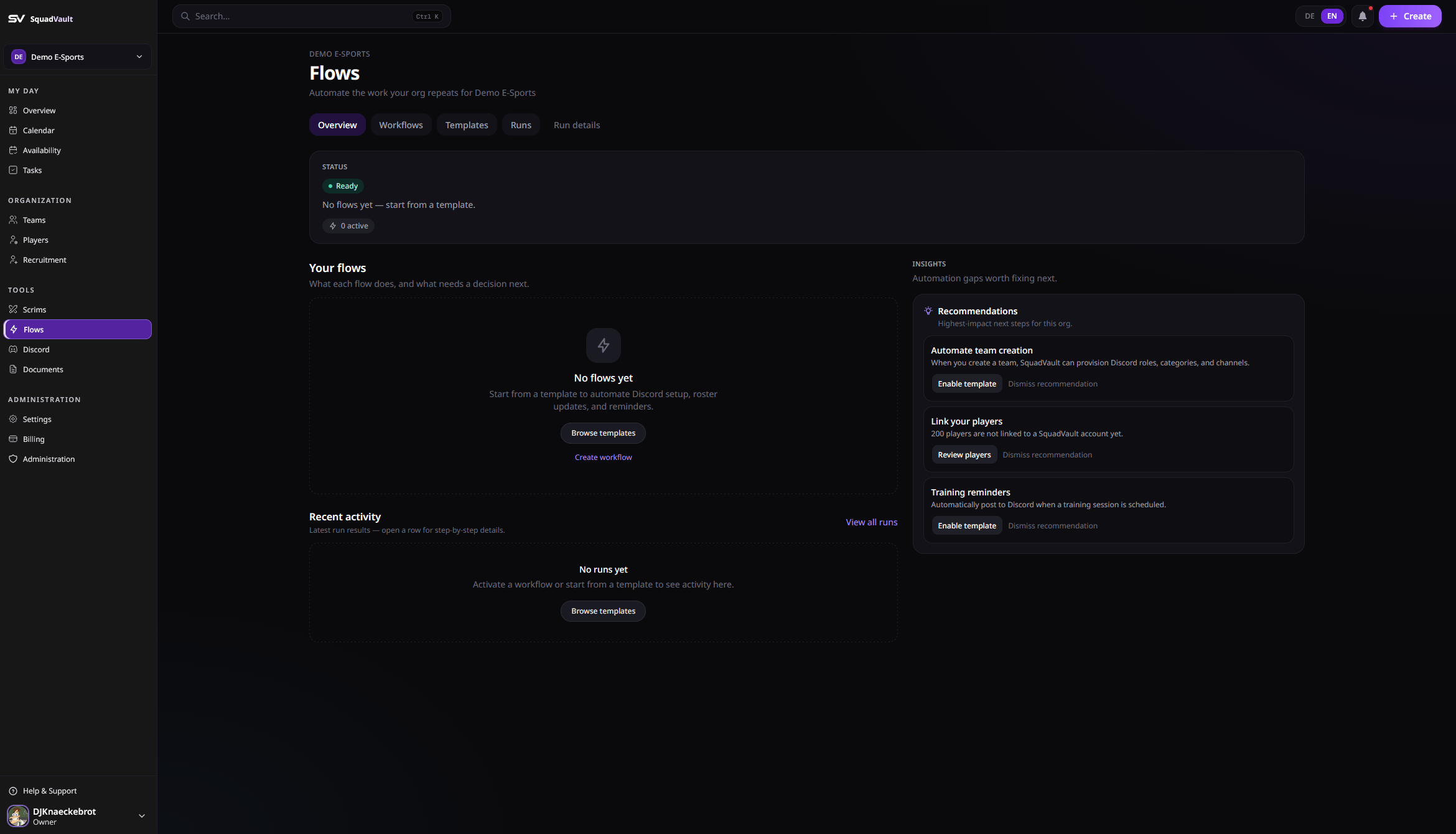
1. Go to **Flows** in the dashboard sidebar.
2. Check **status** first (active flows, failed runs, drafts).
3. Work failed runs first, then prioritize flows and recent activity.
4. Use **insights** for recommendations (fix failures, connect Discord, activate a template).
 ## Build a flow
1. Start from a **template**, or create a blank workflow.
2. Set a **Trigger** (an event, or a time schedule with presets / advanced cron), optional **Only if** conditions, and one or more **Then** actions. New schedules default to the organization [timezone](/user-guide/organizations#general).
3. Save as a **draft**, or **save and activate** so it runs on live events or at the next scheduled time.
Only **active** workflows run. Drafts never fire.
## Build a flow
1. Start from a **template**, or create a blank workflow.
2. Set a **Trigger** (an event, or a time schedule with presets / advanced cron), optional **Only if** conditions, and one or more **Then** actions. New schedules default to the organization [timezone](/user-guide/organizations#general).
3. Save as a **draft**, or **save and activate** so it runs on live events or at the next scheduled time.
Only **active** workflows run. Drafts never fire.
 ## Visual builder vs code
The builder has two modes:
* **Visual** — pick trigger, filters, and actions from forms.
* **Code** — edit the flow definition as JSON (`triggerEventType`, `conditions`, `actions`) for faster bulk edits.
Switch modes anytime. Invalid JSON cannot be saved or switched back to visual until fixed.
## Visual builder vs code
The builder has two modes:
* **Visual** — pick trigger, filters, and actions from forms.
* **Code** — edit the flow definition as JSON (`triggerEventType`, `conditions`, `actions`) for faster bulk edits.
Switch modes anytime. Invalid JSON cannot be saved or switched back to visual until fixed.
Templates
Templates are ready-made starting points. Installing a template creates a workflow you can edit and activate.
Common patterns:
* **New Team Setup** — Discord role, category, and channels when a team is created.
* **Player Joined / Left** — assign or remove the mapped Discord role and post a join/leave embed in the team channel.
* **Availability Reminder** — ask for availability when a training is scheduled (Discord, immediately). Overlaps the in-app **event created** Discord post if that is already going to the team channel.
* **Training Availability Follow-up** — 24 hours before training, remind the team to submit remaining availability in Discord. Overlaps the built-in RSVP nudge (default 24h). You can change the product reminder on the [team workspace](/user-guide/teams-and-players).
* **Scrim Prep Brief** — post a prep checklist when a scrim is created.
* **Scrim Starting Soon** — ping the roster **one hour** before a scrim. The product also sends a starting-soon alert (default **2 hours**, in-app, push, Discord team channel) which you can change per team.
* **Tryout → Team** — assign the Discord role and welcome accepted applicants.
* **New Application Alert** — notify Discord when a tryout application comes in.
* **Tryout Rated / Ready for Decision / Feedback Needed / Stale Shortlist** — recruiting reminders in Discord (stale reminder waits 7 days; ignore if already decided).
* **Tryout Declined** — notify Discord when an application is declined.
* **Discord Sync Failed** — alert the log channel when Discord sync fails.
## Variables
Action configs support `{{path}}` placeholders filled from the event payload and earlier steps.
Examples:
* `{{team.name}}`, `{{player.discordUserId}}`
* `{{steps.0.roleId}}` — output from step index `0` (first action)
* `{{steps.1.discordMentions}}` — roster pings from **Get team players**
* `{{team.name|upper}}`, `{{team.name|lower}}`, `{{team.name|slug}}` — transform the value (`trim` also works)
Use the variable helper in the builder to see what the current trigger and previous steps expose. Click a variable chip to copy it.
Team [event reminders](/user-guide/teams-and-players#event-reminders) use the same chip + copy pattern for `{{eventTitle}}`, `{{when}}`, `{{type}}`, and `{{hours}}`.
## Lookups before side effects
Whenever a flow has a team in context (join/leave, calendar event with team, tryout, team updated, …), the payload includes Discord team settings when linked:
* `{{team.discordRoleId}}` / `{{team.discordRoleMention}}`
* `{{team.teamChannelId}}`
If the trigger has no team (or you need a different team), use **Get team** (`squadvault.get_team`) with a `teamId` — same fields come back as step outputs.
For roster pings and other lookups:
| Action | Useful for |
| -------------------- | ------------------------------------------------------ |
| **Get team** | `discordRoleId`, `discordRoleMention`, `teamChannelId` |
| **Get team players** | `discordMentions`, `names`, `count` for Discord pings |
| **Get player** | Fresh player fields including `discordMention` |
| **Get member** | Org member user profile by user ID |
Example Discord message:
```text theme={null}
Scrim in 10 minutes! {{steps.0.discordMentions}}
```
Players without a linked Discord user ID are skipped in `discordMentions`.
## Activity
* **Activity** lists recent runs and opens step logs, errors, and outputs in one place.
* Use preview/dry-run when testing Discord changes safely.
If nothing appears after an action in the product:
1. Confirm the workflow is **active**.
2. Confirm the trigger matches what you did (for example editing team players fires `player.joined_team` / `player.left_team`).
3. Check **Activity** for errors (Discord not connected, missing IDs, invalid templates).
## Tips
* Prefer templates for Discord provisioning, then tweak channels and copy.
* Put lookups early so later Discord actions can use `{{steps.N.*}}`.
* Enable **continue on error** on non-critical steps (for example welcome messages).
* Keep Discord connected and role/channel mappings in sync — see [Discord](/user-guide/discord).
For the full list of triggers and actions, see [Flows reference](/user-guide/flows-reference).