> ## Documentation Index
> Fetch the complete documentation index at: https://docs.squadvault.xyz/llms.txt
> Use this file to discover all available pages before exploring further.
# Recruitment
> Run tryouts as an operational workspace: status first, then applications and assignments, with a public apply form.
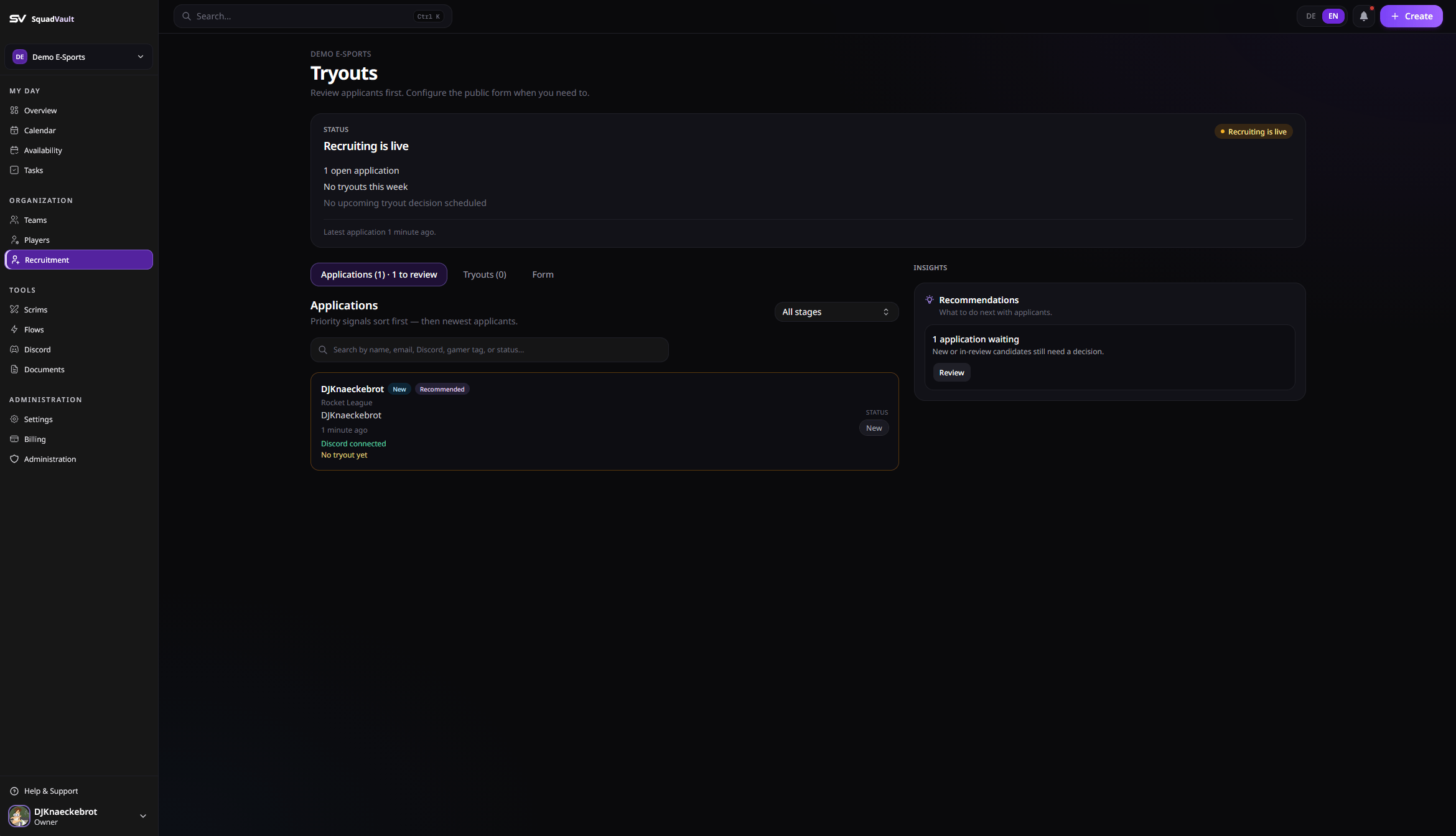
Open **Recruitment** in the sidebar (the page title is **Tryouts**). The workspace follows SquadVault’s usual order: **status** first, then **work**, then **insights**.
 ## How the page is organized
1. **Status** — Whether recruiting is running, needs attention, or still needs setup (open applications, tryouts this week, next decision).
2. **Work** — Three tabs:
* **Applications** — Review and prioritize candidates
* **Tryouts** — Assign applicants or players to team tryouts
* **Forms** — Manage multiple public apply forms, links, and routing
3. **Insights** — A few recommendations (waiting applications, tryouts this week, stale applications, form gaps).
## Review applications
1. Open the **Applications** tab.
2. Start with priority signals (new, awaiting response, stale, recommended).
3. Filter by form when you run several openings in parallel.
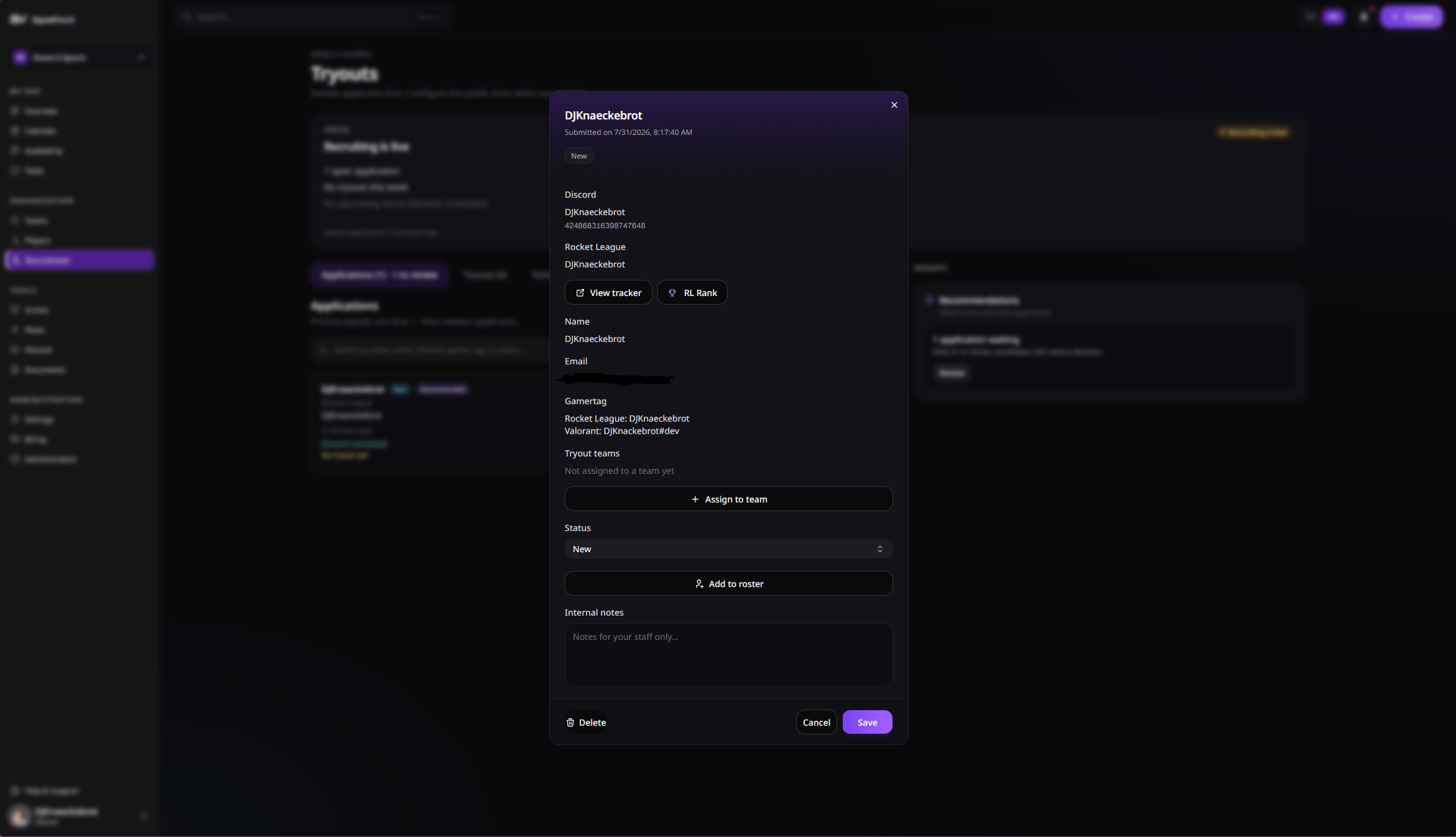
4. Open an application to update status, assign a tryout team, add internal notes, or add the person to the roster.
Pipeline labels in the UI map to stored statuses (for example **New** → `pending`, **Review** → `reviewing`, **Ready for tryout** → `shortlisted`).
## How the page is organized
1. **Status** — Whether recruiting is running, needs attention, or still needs setup (open applications, tryouts this week, next decision).
2. **Work** — Three tabs:
* **Applications** — Review and prioritize candidates
* **Tryouts** — Assign applicants or players to team tryouts
* **Forms** — Manage multiple public apply forms, links, and routing
3. **Insights** — A few recommendations (waiting applications, tryouts this week, stale applications, form gaps).
## Review applications
1. Open the **Applications** tab.
2. Start with priority signals (new, awaiting response, stale, recommended).
3. Filter by form when you run several openings in parallel.
4. Open an application to update status, assign a tryout team, add internal notes, or add the person to the roster.
Pipeline labels in the UI map to stored statuses (for example **New** → `pending`, **Review** → `reviewing`, **Ready for tryout** → `shortlisted`).
 ## Promote to roster
When an applicant makes the cut, open the application detail and use **Add to roster**. SquadVault creates the player profile from the application data, carries over gamer tags, and marks the application as accepted in one step.
If Discord Sync is connected and the applicant already has a Discord user ID on their application, assigning a mapped **player role** in Discord also creates/restores the player and **automatically accepts** the matching open application (`pending`, `reviewing`, or `shortlisted`). Existing [Flows](/user-guide/flows) on `tryout.accepted` still run.
Prefer the manual route when you need more control:
1. Create a player (or link an existing one).
2. Assign teams and gamer tags.
3. Close or update the application so the pipeline stays accurate.
## Set up public forms
You can run **multiple apply forms** per organization. Plan limits apply to **active (open)** forms only:
| Plan | Active forms |
| ------- | ------------ |
| Starter | 1 |
| Pro | 5 |
| Elite | Unlimited |
Draft, closed, and archived forms do not count toward the limit.
1. Open the **Forms** tab.
2. Create a form (starts as draft) or **duplicate** an existing one.
3. Configure title, introduction, privacy, status, deadline, fields, and **routing** (team, recruiters, default status, auto tags, Discord channel, optional intake Flow).
4. Share the form link (`/apply/{orgSlug}/{formSlug}`) when it is open and saved.
The organization listing (`/apply/{orgSlug}` or your custom domain root) shows all **open** positions. Custom domains map `https://your-hostname/{formSlug}` to each form.
A privacy policy is required before a form can be opened. Choose **Use SquadVault privacy** or link your own policy. New forms can copy the default privacy URL from [Organization settings](/user-guide/organizations#public-pages); you can still override it on each form.
Applicants can apply to multiple forms from the same organization (email/Discord uniqueness is per form).
Every plan with recruiting includes the **standard form** (name, email, Discord, role, gamer tags, message). You can edit labels, help text, and visibility.
Applicants submit without needing a SquadVault account.
## Team captains and coaches
Captains, assistant captains, and team coaches can open **Recruitment** for **their teams** when an **owner or admin** turns on **Allow team leads to review tryouts** (Recruitment → Forms, or Settings → Organization). They do not need an organization manager role.
They can review applications for their team, schedule tryouts, submit ratings, and add someone to that team's roster.
They cannot create or edit public apply forms — that stays with organization managers.
When an **owner or admin** turns on **Allow players to rate tryouts**, roster players see **Tryout feedback** instead of the recruiting inbox. They can rate sessions assigned to their team. They do not see applications, internal notes, or forms.
## Form Builder (Pro)
With **enhanced recruiting**, you can customize each apply form further:
* Add custom fields
* Change which fields are required
* Reorder fields
Without that feature, required settings and custom fields stay locked.
## Custom apply domain (Elite)
On Elite you can host the public listing and forms on a subdomain you own (for example `apply.yourteam.com`).
1. In **Recruitment → Forms**, open **Custom domain** on a form editor.
2. Enter your hostname and save.
3. At your DNS provider, add the records shown in the UI:
* **CNAME** from your hostname to the SquadVault target (traffic)
* **TXT** `_squadvault-verify.` (SquadVault ownership)
* **TXT** records from Cloudflare for hostname ownership and SSL (`_cf-custom-hostname…` and `_acme-challenge…`)
4. Wait for DNS propagation, then click **Verify DNS**.
When the domain is **Active** in SquadVault, the share link prefers `https://your-hostname/` for the listing and `https://your-hostname/{formSlug}` for a form. HTTPS also needs the Cloudflare Custom Hostname SSL status to become Active (usually a few minutes after the Cloudflare TXT records are correct).
TLS requires Cloudflare for SaaS Custom Hostnames. Without that, browsers will not trust HTTPS on the custom domain.
Use a **subdomain** in v1. Apex domains (`yourteam.com` without a subdomain) often need ALIAS/ANAME and are not recommended yet.
## Embed on your website
If the club site already lives on WordPress (or any CMS), embed the listing or a single form instead of sending people to a separate page.
1. Open **Recruitment → Forms**.
2. Copy **embed code** (any HTML block) or the **WordPress shortcode**.
3. Applications still arrive in SquadVault. The website only shows open positions and the form.
| Option | Use when |
| ------------------------- | ---------------------------------------- |
| **Link** | Share in Discord or social posts |
| **Embed** | A section on the existing club website |
| **Custom domain** (Elite) | Full apply pages on `apply.yourteam.com` |
WordPress shortcode examples:
```
[squadvault_apply org="your-org-slug"]
[squadvault_apply org="your-org-slug" form="cs2" locale="de"]
[squadvault_apply org="your-org-slug" form="cs2" locale="de" chrome="forms"]
[squadvault_apply org="your-org-slug" form="cs2" locale="de" chrome="forms" onlylink="true"]
```
WordPress lowercases shortcode attributes. Use `onlylink="true"`, not `onlyLink`.
| Attribute | What it does |
| ----------------- | ------------------------------------------------------------------------------------------------------------------------------------------------------------ |
| `org` | Organization slug (required) |
| `form` | Single form slug. Omit to show every open position |
| `locale` | `de` or `en` |
| `chrome="forms"` | Hide organization logo and page title. Positions or the form stay on your page |
| `onlylink="true"` | Show one listing-style position card that opens the SquadVault apply page. Use this when the club site already has its own layout (Elementor, banners, copy) |
**Powered by SquadVault** always stays visible — including `chrome="forms"` and `onlylink="true"`.
You can copy the same options from **Recruitment → Forms → Embed on your website** (toggles **Forms only** and **One position**).
Install the plugin from `integrations/wordpress/squadvault-apply` (zip the folder into `wp-content/plugins`). Use plugin **1.2.0** or newer for `onlylink`. Discord connect in the full embed opens a pop-up — applicants must allow pop-ups. The one-position embed does not use a pop-up; it sends applicants to the apply page.
## Tips
* Keep forms open only while you are actively recruiting.
* Use the **Tryouts** tab so coaches know who to evaluate and when.
* Use tasks for follow-ups (interviews, VOD reviews, offers).
* Align tryout events on the calendar with assignments.
## Promote to roster
When an applicant makes the cut, open the application detail and use **Add to roster**. SquadVault creates the player profile from the application data, carries over gamer tags, and marks the application as accepted in one step.
If Discord Sync is connected and the applicant already has a Discord user ID on their application, assigning a mapped **player role** in Discord also creates/restores the player and **automatically accepts** the matching open application (`pending`, `reviewing`, or `shortlisted`). Existing [Flows](/user-guide/flows) on `tryout.accepted` still run.
Prefer the manual route when you need more control:
1. Create a player (or link an existing one).
2. Assign teams and gamer tags.
3. Close or update the application so the pipeline stays accurate.
## Set up public forms
You can run **multiple apply forms** per organization. Plan limits apply to **active (open)** forms only:
| Plan | Active forms |
| ------- | ------------ |
| Starter | 1 |
| Pro | 5 |
| Elite | Unlimited |
Draft, closed, and archived forms do not count toward the limit.
1. Open the **Forms** tab.
2. Create a form (starts as draft) or **duplicate** an existing one.
3. Configure title, introduction, privacy, status, deadline, fields, and **routing** (team, recruiters, default status, auto tags, Discord channel, optional intake Flow).
4. Share the form link (`/apply/{orgSlug}/{formSlug}`) when it is open and saved.
The organization listing (`/apply/{orgSlug}` or your custom domain root) shows all **open** positions. Custom domains map `https://your-hostname/{formSlug}` to each form.
A privacy policy is required before a form can be opened. Choose **Use SquadVault privacy** or link your own policy. New forms can copy the default privacy URL from [Organization settings](/user-guide/organizations#public-pages); you can still override it on each form.
Applicants can apply to multiple forms from the same organization (email/Discord uniqueness is per form).
Every plan with recruiting includes the **standard form** (name, email, Discord, role, gamer tags, message). You can edit labels, help text, and visibility.
Applicants submit without needing a SquadVault account.
## Team captains and coaches
Captains, assistant captains, and team coaches can open **Recruitment** for **their teams** when an **owner or admin** turns on **Allow team leads to review tryouts** (Recruitment → Forms, or Settings → Organization). They do not need an organization manager role.
They can review applications for their team, schedule tryouts, submit ratings, and add someone to that team's roster.
They cannot create or edit public apply forms — that stays with organization managers.
When an **owner or admin** turns on **Allow players to rate tryouts**, roster players see **Tryout feedback** instead of the recruiting inbox. They can rate sessions assigned to their team. They do not see applications, internal notes, or forms.
## Form Builder (Pro)
With **enhanced recruiting**, you can customize each apply form further:
* Add custom fields
* Change which fields are required
* Reorder fields
Without that feature, required settings and custom fields stay locked.
## Custom apply domain (Elite)
On Elite you can host the public listing and forms on a subdomain you own (for example `apply.yourteam.com`).
1. In **Recruitment → Forms**, open **Custom domain** on a form editor.
2. Enter your hostname and save.
3. At your DNS provider, add the records shown in the UI:
* **CNAME** from your hostname to the SquadVault target (traffic)
* **TXT** `_squadvault-verify.` (SquadVault ownership)
* **TXT** records from Cloudflare for hostname ownership and SSL (`_cf-custom-hostname…` and `_acme-challenge…`)
4. Wait for DNS propagation, then click **Verify DNS**.
When the domain is **Active** in SquadVault, the share link prefers `https://your-hostname/` for the listing and `https://your-hostname/{formSlug}` for a form. HTTPS also needs the Cloudflare Custom Hostname SSL status to become Active (usually a few minutes after the Cloudflare TXT records are correct).
TLS requires Cloudflare for SaaS Custom Hostnames. Without that, browsers will not trust HTTPS on the custom domain.
Use a **subdomain** in v1. Apex domains (`yourteam.com` without a subdomain) often need ALIAS/ANAME and are not recommended yet.
## Embed on your website
If the club site already lives on WordPress (or any CMS), embed the listing or a single form instead of sending people to a separate page.
1. Open **Recruitment → Forms**.
2. Copy **embed code** (any HTML block) or the **WordPress shortcode**.
3. Applications still arrive in SquadVault. The website only shows open positions and the form.
| Option | Use when |
| ------------------------- | ---------------------------------------- |
| **Link** | Share in Discord or social posts |
| **Embed** | A section on the existing club website |
| **Custom domain** (Elite) | Full apply pages on `apply.yourteam.com` |
WordPress shortcode examples:
```
[squadvault_apply org="your-org-slug"]
[squadvault_apply org="your-org-slug" form="cs2" locale="de"]
[squadvault_apply org="your-org-slug" form="cs2" locale="de" chrome="forms"]
[squadvault_apply org="your-org-slug" form="cs2" locale="de" chrome="forms" onlylink="true"]
```
WordPress lowercases shortcode attributes. Use `onlylink="true"`, not `onlyLink`.
| Attribute | What it does |
| ----------------- | ------------------------------------------------------------------------------------------------------------------------------------------------------------ |
| `org` | Organization slug (required) |
| `form` | Single form slug. Omit to show every open position |
| `locale` | `de` or `en` |
| `chrome="forms"` | Hide organization logo and page title. Positions or the form stay on your page |
| `onlylink="true"` | Show one listing-style position card that opens the SquadVault apply page. Use this when the club site already has its own layout (Elementor, banners, copy) |
**Powered by SquadVault** always stays visible — including `chrome="forms"` and `onlylink="true"`.
You can copy the same options from **Recruitment → Forms → Embed on your website** (toggles **Forms only** and **One position**).
Install the plugin from `integrations/wordpress/squadvault-apply` (zip the folder into `wp-content/plugins`). Use plugin **1.2.0** or newer for `onlylink`. Discord connect in the full embed opens a pop-up — applicants must allow pop-ups. The one-position embed does not use a pop-up; it sends applicants to the apply page.
## Tips
* Keep forms open only while you are actively recruiting.
* Use the **Tryouts** tab so coaches know who to evaluate and when.
* Use tasks for follow-ups (interviews, VOD reviews, offers).
* Align tryout events on the calendar with assignments.