> ## Documentation Index
> Fetch the complete documentation index at: https://docs.squadvault.xyz/llms.txt
> Use this file to discover all available pages before exploring further.
# Events
> Run Mission Control for scrims and tournaments — prep, availability, lobby details, and results in one workspace.
Events in SquadVault are **Mission Control after the booking** — not a match finder. Gankster (or your own chat) finds the opponent; SquadVault prepares the team.
Competitive events are specialized calendar events (`Scrim` or `Tournament`) with a dedicated workspace. They still appear on the calendar, but clicking opens the workspace instead of a giant edit form.
Event management is plan-gated (same feature as Scrims). If you see an upgrade banner, open [Billing](/user-guide/billing).
## Open Events
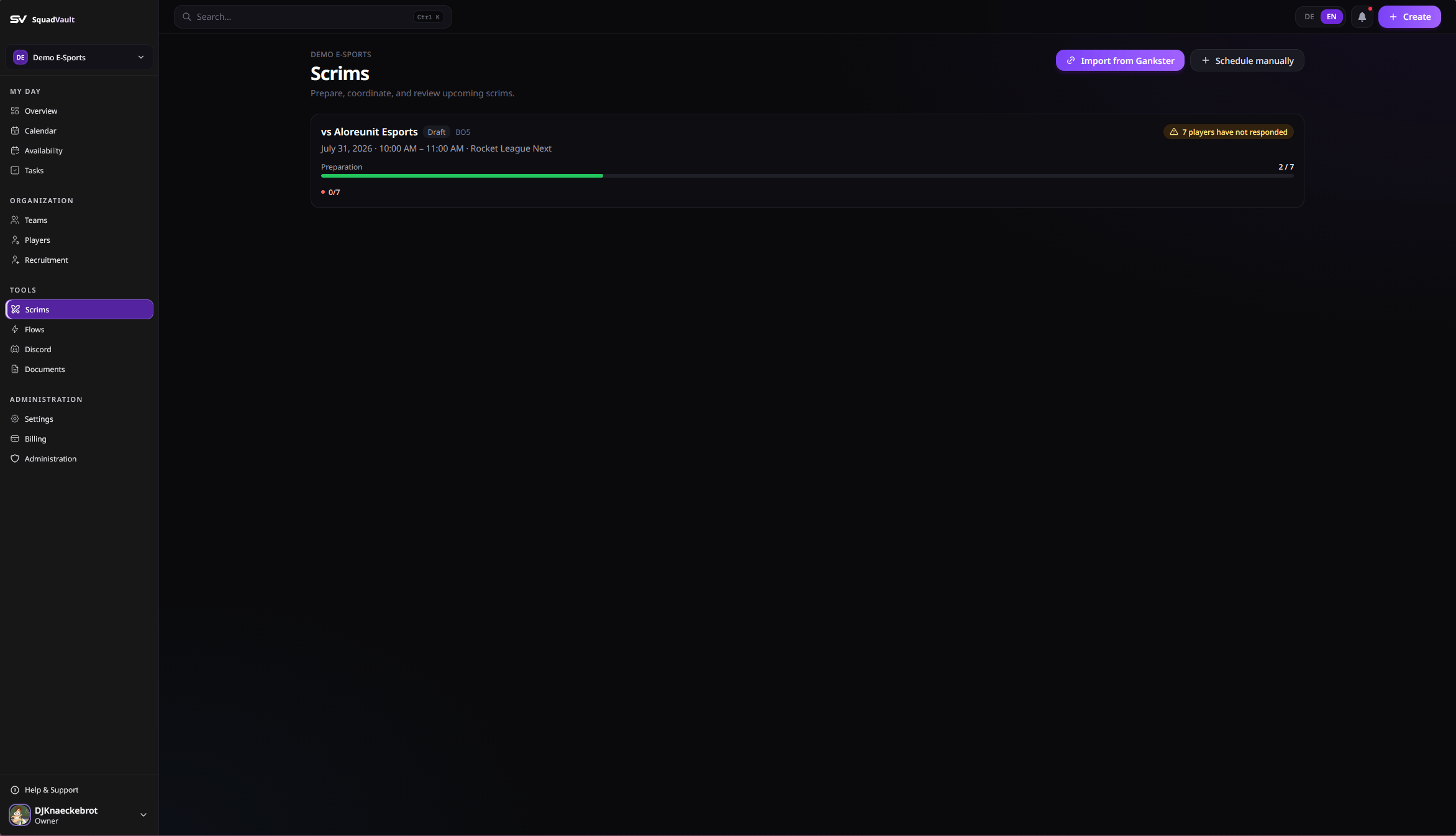
1. Open **Events** in the sidebar.
2. Filter by All / Scrims / Tournaments if needed.
3. Review upcoming workspaces — readiness, warnings, and availability at a glance.
4. Click a row to open Mission Control.
The dashboard overview also lists upcoming competitive events when the feature is available.
 ## Create an event workspace
### Import from Gankster (scrims)
Primary path when the booking already lives on Gankster:
1. Click **Import from Gankster**.
2. Paste a Gankster team or scrim link.
3. Confirm opponent, team, format, and time.
4. Create the workspace — SquadVault opens Mission Control for that booking.
If the same Gankster link was imported before, SquadVault points you to the existing workspace instead of duplicating it.
### Schedule a scrim or tournament
1. Click **Schedule scrim** or **Schedule tournament**.
2. Enter a title, team, and time.
3. Create the workspace — you land directly in Mission Control.
You can also create either type from **Calendar** by choosing Scrim or Tournament as the event type.
## Mission Control
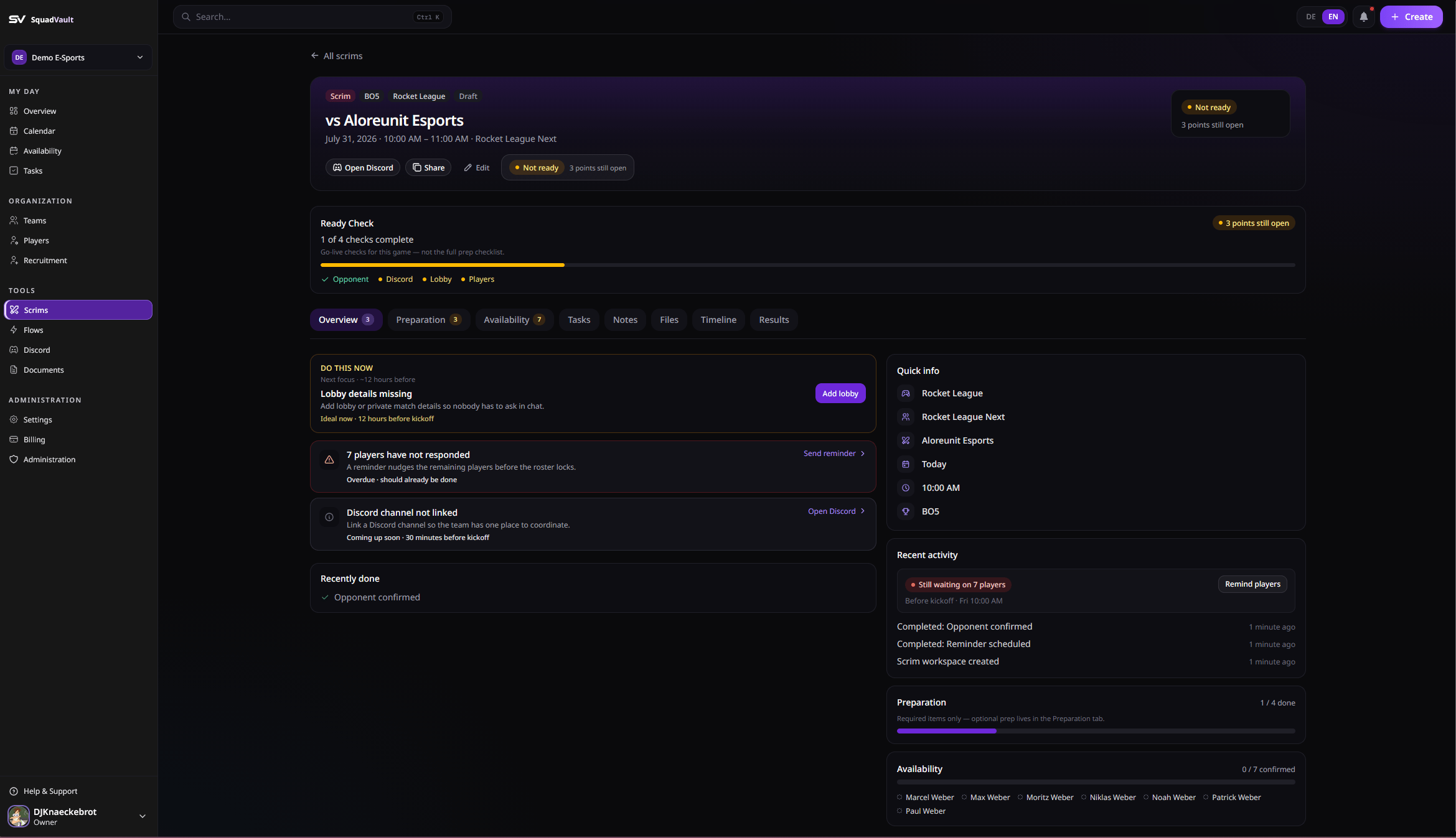
The workspace answers three questions in order: **Is everything ready?** → **What should I do?** → **What’s supporting context?**
## Create an event workspace
### Import from Gankster (scrims)
Primary path when the booking already lives on Gankster:
1. Click **Import from Gankster**.
2. Paste a Gankster team or scrim link.
3. Confirm opponent, team, format, and time.
4. Create the workspace — SquadVault opens Mission Control for that booking.
If the same Gankster link was imported before, SquadVault points you to the existing workspace instead of duplicating it.
### Schedule a scrim or tournament
1. Click **Schedule scrim** or **Schedule tournament**.
2. Enter a title, team, and time.
3. Create the workspace — you land directly in Mission Control.
You can also create either type from **Calendar** by choosing Scrim or Tournament as the event type.
## Mission Control
The workspace answers three questions in order: **Is everything ready?** → **What should I do?** → **What’s supporting context?**
 ### Overview
* **Needs attention** — missing opponent (scrims), stage (tournaments), lobby details, tournament code, unanswered RSVPs, and similar gaps
* Preparation and availability progress
* Suggested next actions (remind players, start, record results)
Click an attention item to jump to the right place (edit dialog, preparation, availability, or Discord).
### Preparation
Track the checklist that makes the event ready: tournament code, lobby / private match details, maps, coach, and custom items. Completing signals (for example adding a tournament code) can auto-complete matching checklist rows.
### Availability
See who accepted, maybe’d, or has not responded. Use **Remind players** when responses are still missing. Full RSVP handling lives under [Calendar and availability](/user-guide/calendar-and-availability).
### Tasks, notes, and files
* Link prep tasks (code, maps, VOD upload) from **Tasks**
* Capture opponent notes and focus points
* Attach playbooks or strategy docs from **Documents**
### Timeline and results
Review the timeline of prep and status changes. After the match, record outcome, score, notes, and VOD.
## Tips
* Prefer **Import from Gankster** when the booking already exists there — less double entry.
* Keep lobby details and codes in the workspace so Discord chat stays quieter.
* For tournaments, set the **stage / round** early so readiness stays accurate.
* Link Discord channels on the team so voice readiness resolves automatically.
### Overview
* **Needs attention** — missing opponent (scrims), stage (tournaments), lobby details, tournament code, unanswered RSVPs, and similar gaps
* Preparation and availability progress
* Suggested next actions (remind players, start, record results)
Click an attention item to jump to the right place (edit dialog, preparation, availability, or Discord).
### Preparation
Track the checklist that makes the event ready: tournament code, lobby / private match details, maps, coach, and custom items. Completing signals (for example adding a tournament code) can auto-complete matching checklist rows.
### Availability
See who accepted, maybe’d, or has not responded. Use **Remind players** when responses are still missing. Full RSVP handling lives under [Calendar and availability](/user-guide/calendar-and-availability).
### Tasks, notes, and files
* Link prep tasks (code, maps, VOD upload) from **Tasks**
* Capture opponent notes and focus points
* Attach playbooks or strategy docs from **Documents**
### Timeline and results
Review the timeline of prep and status changes. After the match, record outcome, score, notes, and VOD.
## Tips
* Prefer **Import from Gankster** when the booking already exists there — less double entry.
* Keep lobby details and codes in the workspace so Discord chat stays quieter.
* For tournaments, set the **stage / round** early so readiness stays accurate.
* Link Discord channels on the team so voice readiness resolves automatically.