> ## Documentation Index
> Fetch the complete documentation index at: https://docs.squadvault.xyz/llms.txt
> Use this file to discover all available pages before exploring further.
# Tasks
> Assign work, set due dates, and keep coaches, managers, and players aligned.
Tasks keep day-to-day work visible: content, tryouts, management follow-ups, and everything in between.
The page starts with **status** (overdue and due today), then the prioritized **work** list, then light **insights** (workload and suggested follow-ups).
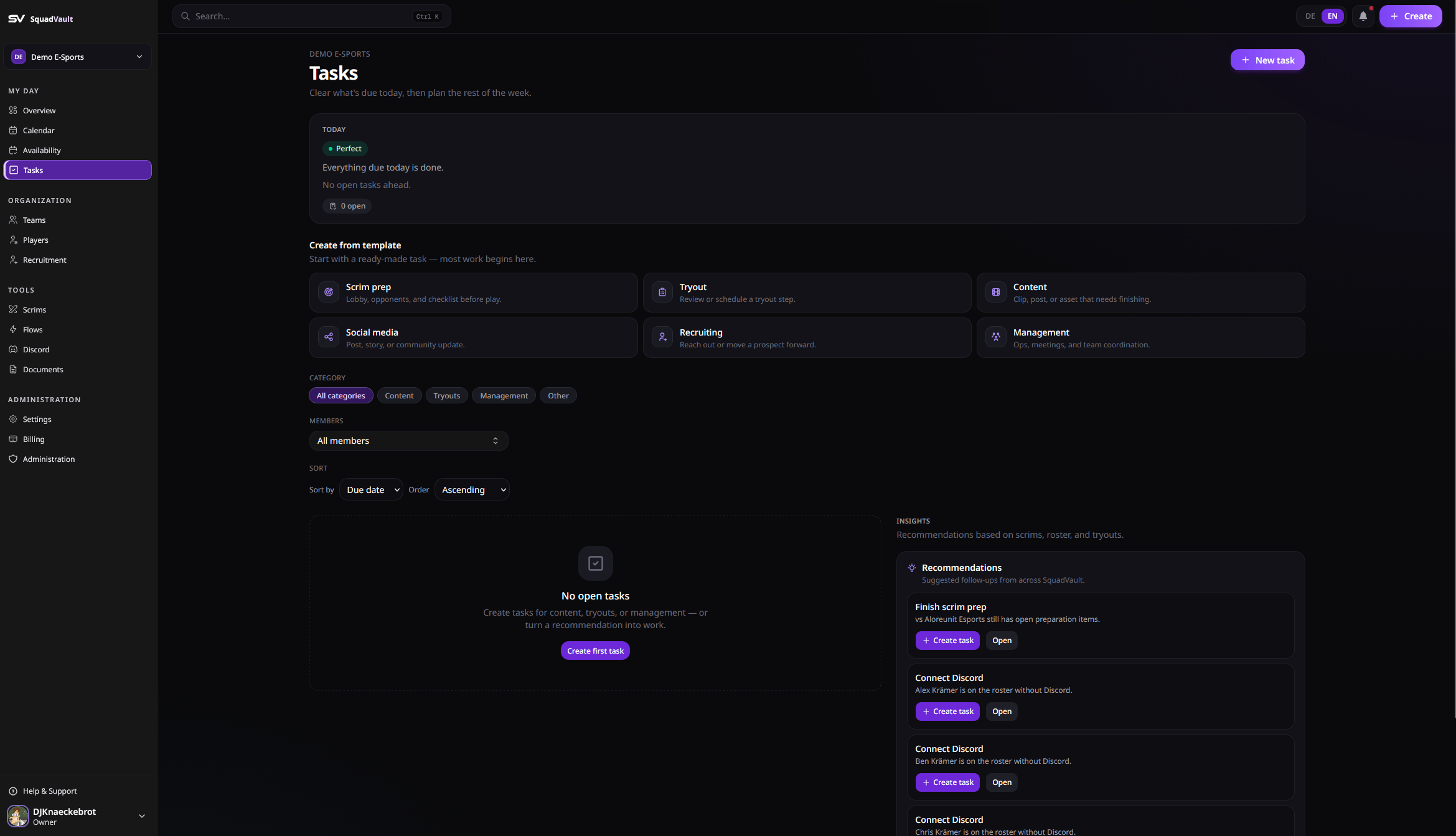 ## Create a task
1. Open **Tasks**.
2. Add a title, optional description, category, assignee, and due date.
3. Track progress until it is done.
Categories help you filter work (for example content, tryouts, or management).
## Stay on top of work
* Prefer overdue and due-today items before everything else.
* Filter by category, assignee, or status when the list grows.
* Link related calendar events when a task belongs to a scrim or meeting.
* Check the overview dashboard for what needs attention today.
## Tips
* Prefer clear owners and due dates over long descriptions.
* Break large recruitment or content projects into smaller tasks.
* Close completed tasks so the board stays actionable.
## Create a task
1. Open **Tasks**.
2. Add a title, optional description, category, assignee, and due date.
3. Track progress until it is done.
Categories help you filter work (for example content, tryouts, or management).
## Stay on top of work
* Prefer overdue and due-today items before everything else.
* Filter by category, assignee, or status when the list grows.
* Link related calendar events when a task belongs to a scrim or meeting.
* Check the overview dashboard for what needs attention today.
## Tips
* Prefer clear owners and due dates over long descriptions.
* Break large recruitment or content projects into smaller tasks.
* Close completed tasks so the board stays actionable.