> ## Documentation Index
> Fetch the complete documentation index at: https://docs.squadvault.xyz/llms.txt
> Use this file to discover all available pages before exploring further.
# Teams and players
> Build your roster with teams, player profiles, gamer tags, and staff assignments.
Teams and players are the core of your roster. Keep them current so calendar, availability, Discord, and recruitment stay aligned.
Both pages follow **status → work → insights**: readiness first, then browse/manage, then recommendations (empty rosters, Discord gaps, missing account links).
## Teams
1. Open **Teams**.
2. Check how many teams are ready vs need attention.
3. Browse cards or switch to manage/list view.
4. Create a team with a name and game; optionally add description, logo, staff, and players. New teams and players can prefill the [default game](/user-guide/organizations#general) from Settings.
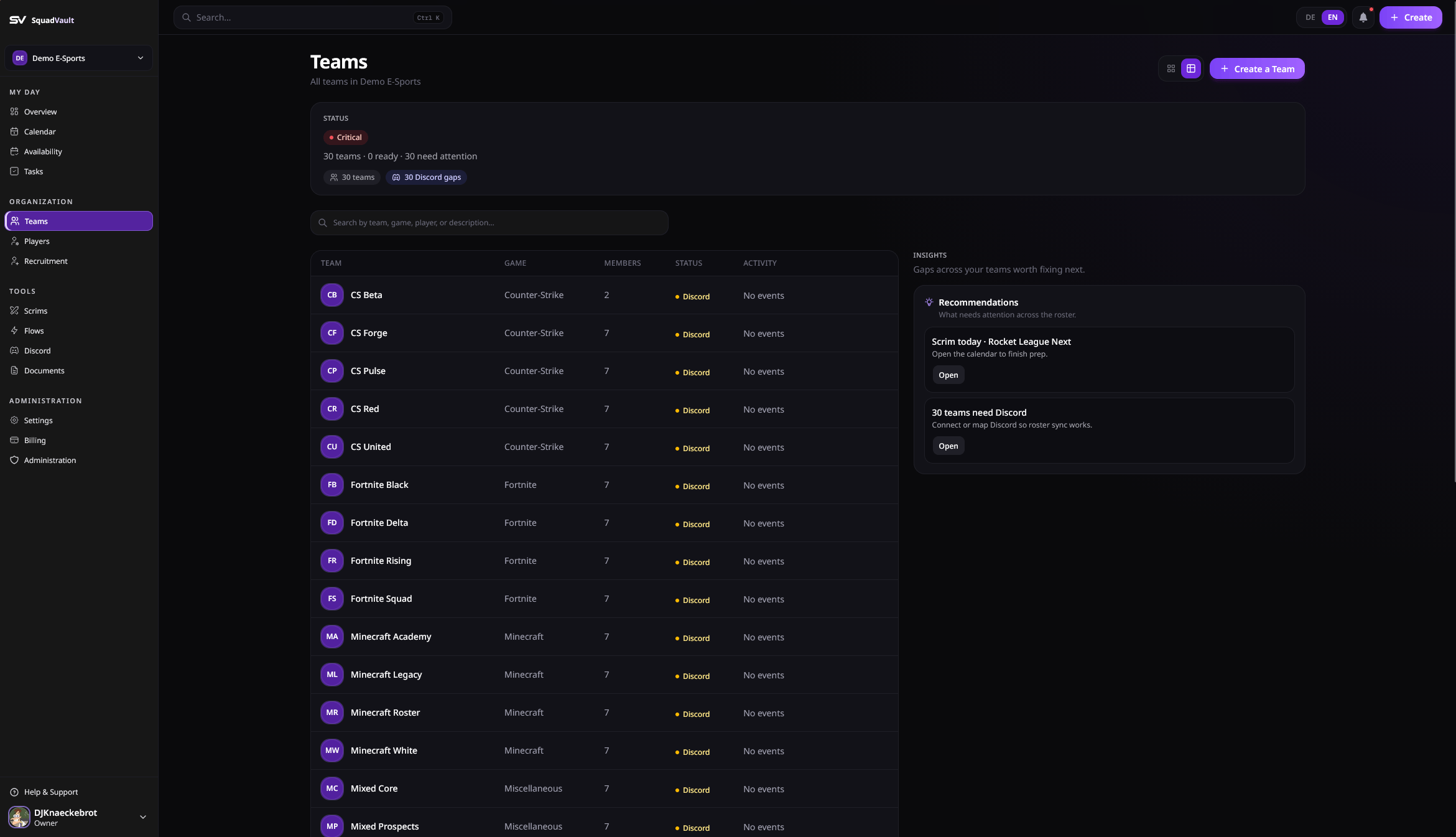 Supported games include Counter-Strike, Valorant, Overwatch, Fortnite, Minecraft, Rocket League, League of Legends, and Other.
## Players
1. Open **Players**.
2. Check roster readiness (account, Discord, teams).
3. Add a display name and at least one gamer tag (game + tag).
4. Optionally set a role (for example IGL or AWP), main game, and team memberships.
5. Link a Discord account when you use Discord Sync.
Supported games include Counter-Strike, Valorant, Overwatch, Fortnite, Minecraft, Rocket League, League of Legends, and Other.
## Players
1. Open **Players**.
2. Check roster readiness (account, Discord, teams).
3. Add a display name and at least one gamer tag (game + tag).
4. Optionally set a role (for example IGL or AWP), main game, and team memberships.
5. Link a Discord account when you use Discord Sync.
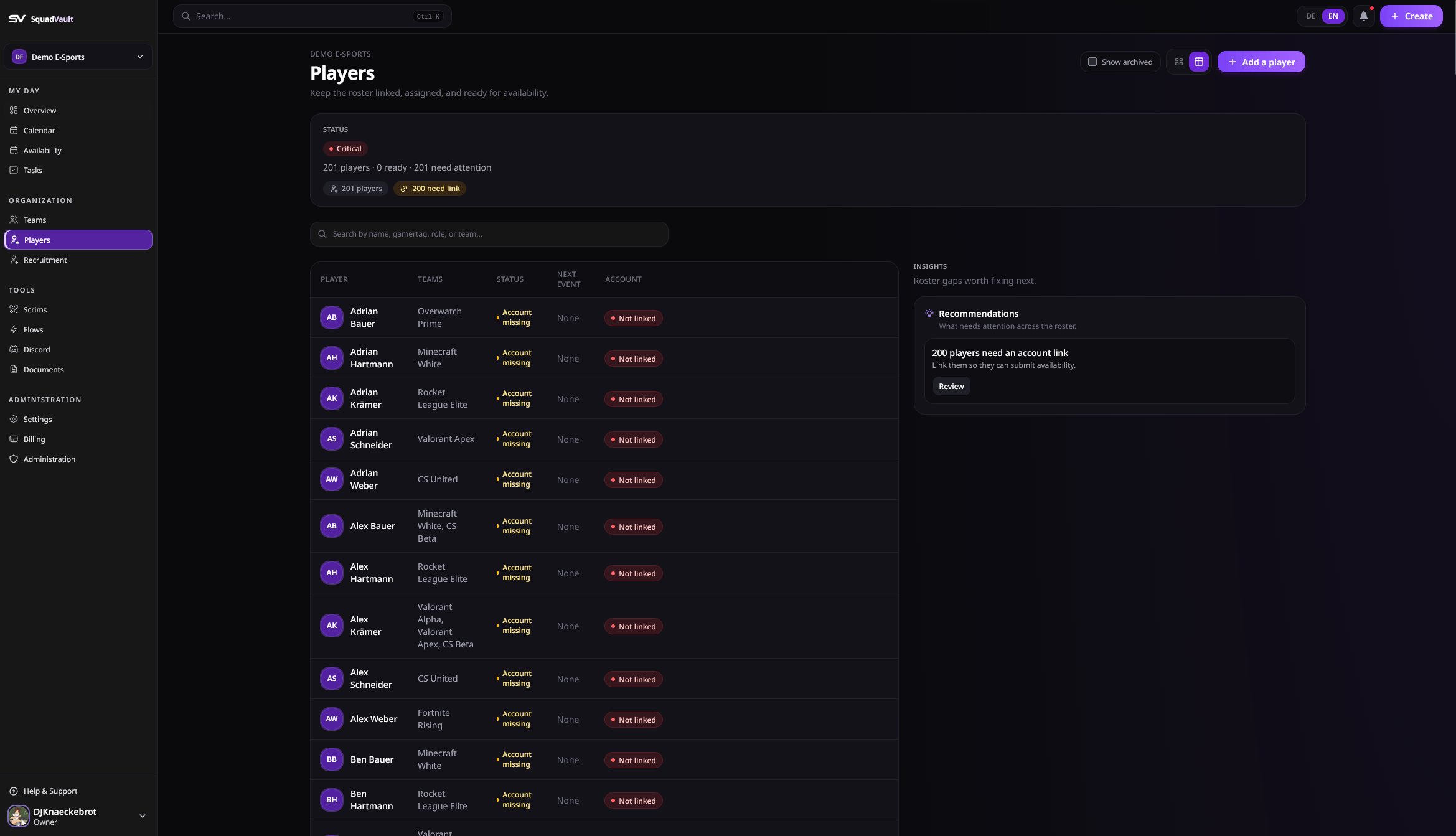 Players can belong to multiple teams. Archive players you no longer need instead of deleting them if you might restore later.
For Rocket League tags, staff can open the tracker or (on plans with rank access) look up ranks from the player or application surfaces.
## Archive and restore
* Archive a player from the player editor when they leave the active roster.
* Restore archived players when they return.
* List views hide archived players by default.
## Staff on a team
Assign coaches and analysts on the team so permissions and coaching workflows stay scoped to the right roster.
## Event reminders
On a team workspace, staff who can edit the team can change when RSVP and “starting soon” reminders fire, which channels they use, and optional custom text. Defaults are 24 hours (missing RSVP) and 2 hours (starting soon).
Open **Custom message** to override the title and body. Placeholders use `{{path}}`, same syntax as [Flows](/user-guide/flows#variables). Click a chip to copy it and insert it into the focused field.
| Variable | Meaning |
| ---------------- | ------------------------------------- |
| `{{eventTitle}}` | Event title |
| `{{when}}` | Date and time (organization timezone) |
| `{{type}}` | Event type (training, scrim, …) |
| `{{hours}}` | Hours before start for this reminder |
Leave the fields empty to keep the product default. See [Calendar and availability](/user-guide/calendar-and-availability#built-in-reminders).
## Tips
* Use consistent gamer tags so Discord mapping and search stay accurate.
* Prefer archive over delete when you need history.
* Update team staff when coaching assignments change mid-season.
Players can belong to multiple teams. Archive players you no longer need instead of deleting them if you might restore later.
For Rocket League tags, staff can open the tracker or (on plans with rank access) look up ranks from the player or application surfaces.
## Archive and restore
* Archive a player from the player editor when they leave the active roster.
* Restore archived players when they return.
* List views hide archived players by default.
## Staff on a team
Assign coaches and analysts on the team so permissions and coaching workflows stay scoped to the right roster.
## Event reminders
On a team workspace, staff who can edit the team can change when RSVP and “starting soon” reminders fire, which channels they use, and optional custom text. Defaults are 24 hours (missing RSVP) and 2 hours (starting soon).
Open **Custom message** to override the title and body. Placeholders use `{{path}}`, same syntax as [Flows](/user-guide/flows#variables). Click a chip to copy it and insert it into the focused field.
| Variable | Meaning |
| ---------------- | ------------------------------------- |
| `{{eventTitle}}` | Event title |
| `{{when}}` | Date and time (organization timezone) |
| `{{type}}` | Event type (training, scrim, …) |
| `{{hours}}` | Hours before start for this reminder |
Leave the fields empty to keep the product default. See [Calendar and availability](/user-guide/calendar-and-availability#built-in-reminders).
## Tips
* Use consistent gamer tags so Discord mapping and search stay accurate.
* Prefer archive over delete when you need history.
* Update team staff when coaching assignments change mid-season.