

Calendar
- Open Calendar.
- Check how prepared the week looks (status), then work through upcoming events and missing responses.
- Create an event: scrim, training, meeting, or content.
- Choose visibility:
- Personal — only you can see and edit it (available to every member, including players)
- Team — visible to that team’s members and staff
- Organization-wide — visible to everyone in the organization (managers)
- Optionally link documents or tasks on shared (team / organization) events.
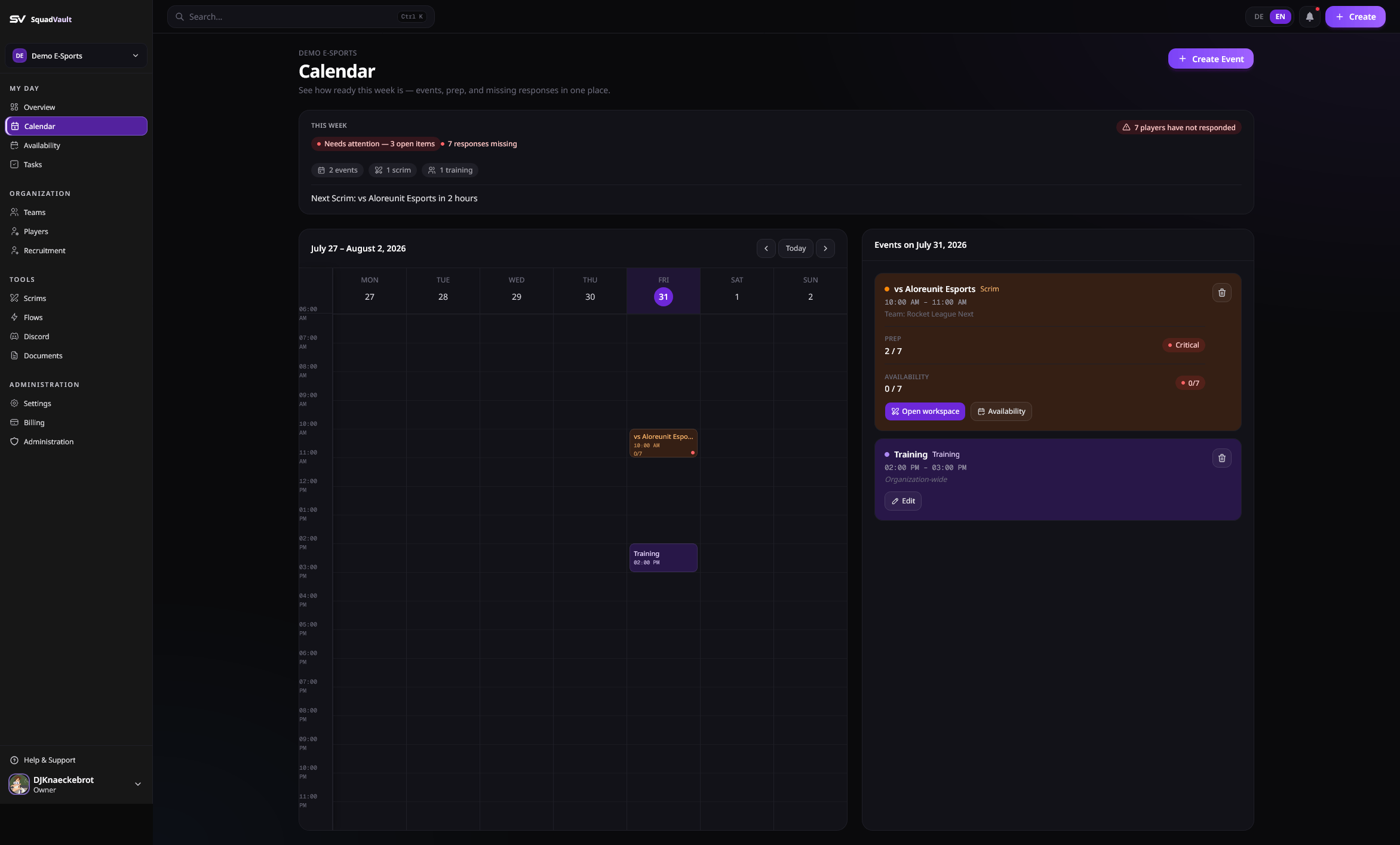
Calendar week
Built-in reminders
Shared team events get automatic reminders when Redis is configured (the worker is running). Defaults:- 24 hours before training, scrim, match, or tournament: players who have not RSVP’d yet get an in-app and push nudge.
- 2 hours before those types and meetings: the whole team gets “starting soon” in-app, push, and the Discord team channel.
{{path}} placeholders as Flows. Open Custom message, click a chip to copy it (and insert it into the title or body), then save. Empty fields keep the default copy.
content and other events are not on this schedule. Updating only linked documents or tasks does not send an “event changed” alert.
These built-in jobs are separate from Flow templates such as Training Availability Follow-up (−24h Discord blast) and Scrim Starting Soon (−1h Discord ping). If you activate those templates, the team can get both the product reminder and the Flow message. Use Flows when you want extra Discord copy or a different time; otherwise leave them off — or turn Discord off on the team reminder so only the Flow posts.
Everyone who needs a shared event can see it in one view — no more hunting through Discord threads.
When the event type is Scrim, clicking it opens the Scrim workspace instead of the generic edit dialog.
Recurring events
Make an event repeat (for example a fixed training block) instead of creating each occurrence by hand. When you edit or delete a recurring event, SquadVault asks about scope:- This event — only the occurrence you opened
- This and following events — the occurrence plus everything after it
- All events — the whole series
Event RSVPs
Players respond to events with statuses such as available, maybe, unavailable, late, vacation, or sick. Anyone who has not answered yet shows as pending — use Remind non-responders on the event to send them a nudge, so you know the lineup before start time.Weekly availability
- Open Availability.
- Check team coverage (status), then respond, remind, or resolve gaps (work).
- Players mark weekly two-hour slots when they can play.
- Coaches and captains use the team heatmap to find the brightest cells.
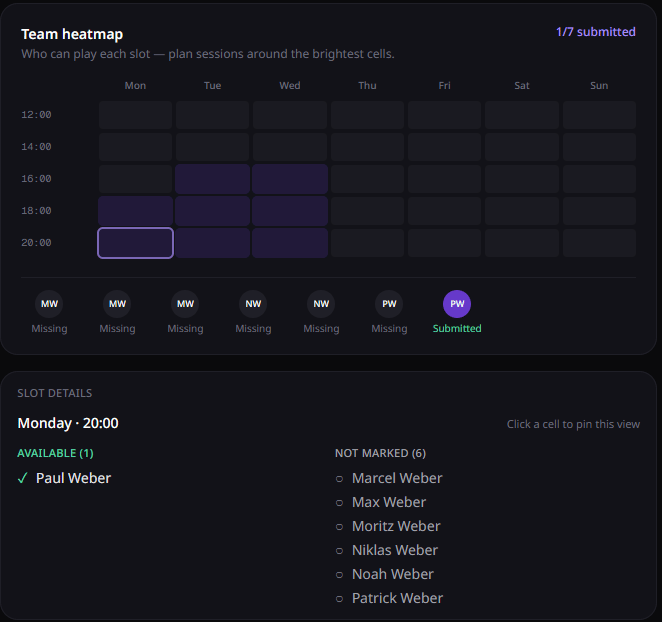
Availability heatmap
Good defaults
- Create recurring training blocks early in the week.
- Ask for RSVPs on scrims at least a day ahead.
- Review the heatmap before locking a new scrim slot.
- After a scrim is booked, finish prep in Scrims.