

Teams
- Open Teams.
- Check how many teams are ready vs need attention.
- Browse cards or switch to manage/list view.
- Create a team with a name and game; optionally add description, logo, staff, and players. New teams and players can prefill the default game from Settings.
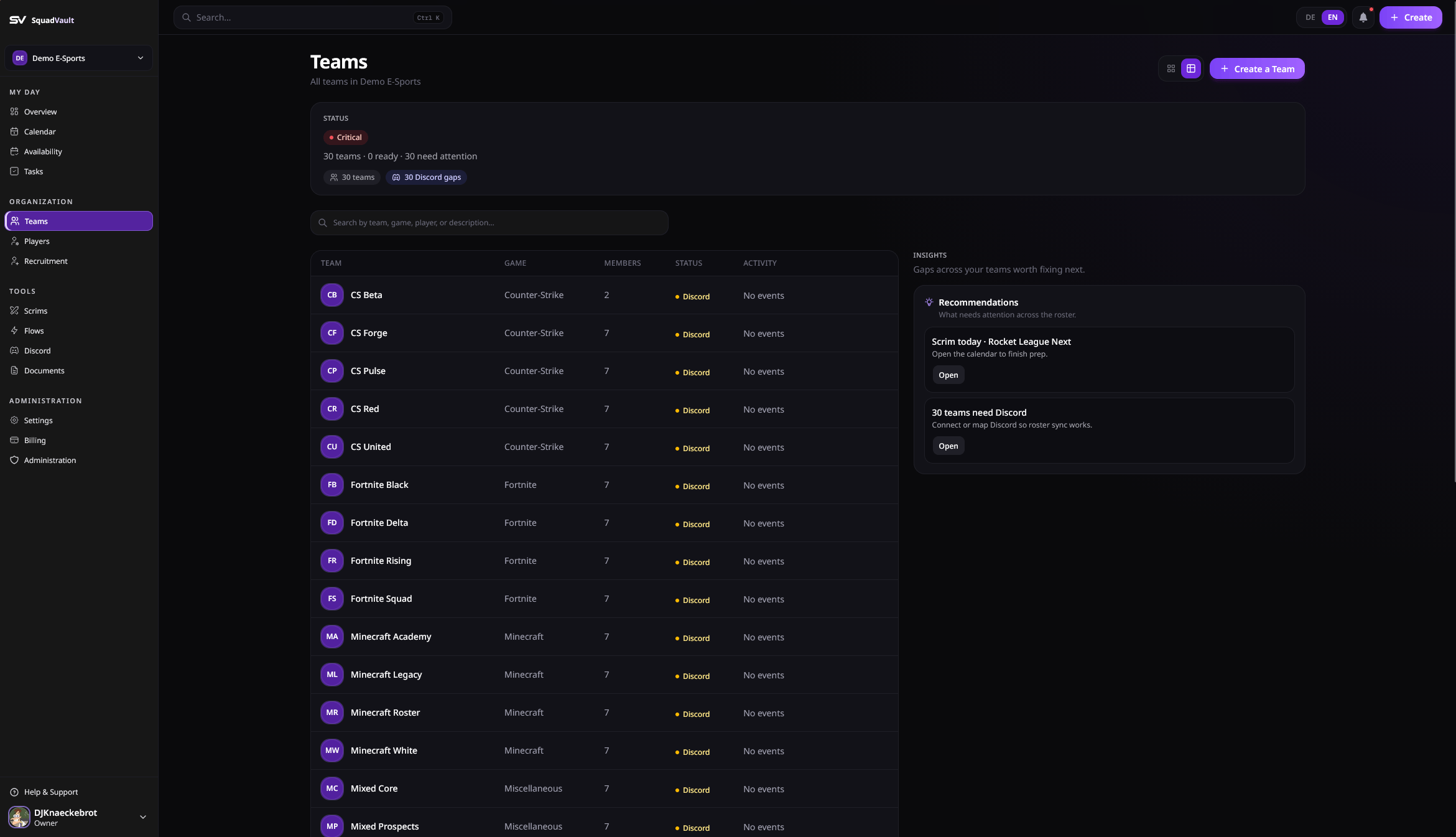
Teams
Players
- Open Players.
- Check roster readiness (account, Discord, teams).
- Add a display name and at least one gamer tag (game + tag).
- Optionally set a role (for example IGL or AWP), main game, and team memberships.
- Link a Discord account when you use Discord Sync.
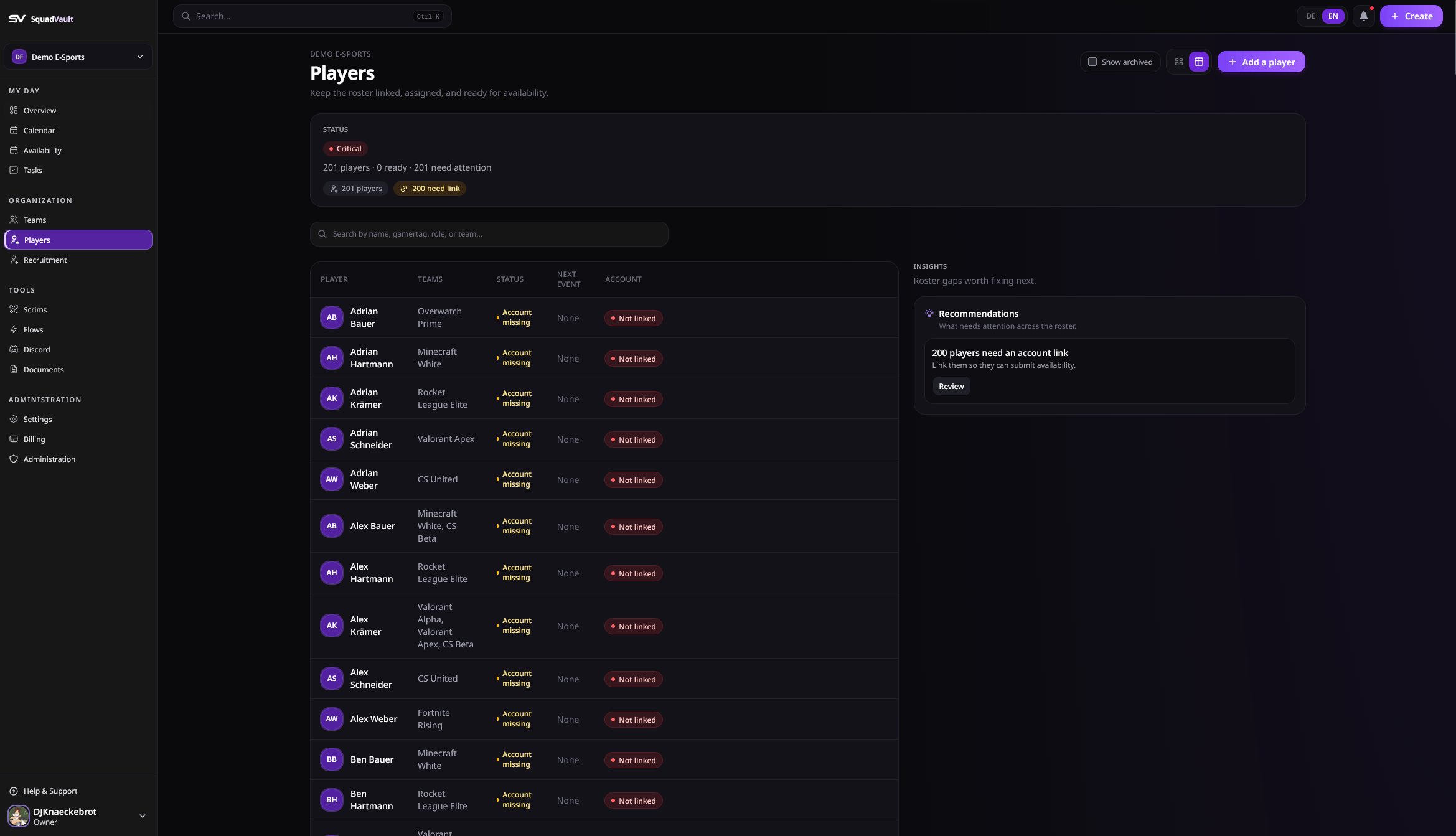
Players
Archive and restore
- Archive a player from the player editor when they leave the active roster.
- Restore archived players when they return.
- List views hide archived players by default.
Staff on a team
Assign coaches and analysts on the team so permissions and coaching workflows stay scoped to the right roster.Event reminders
On a team workspace, staff who can edit the team can change when RSVP and “starting soon” reminders fire, which channels they use, and optional custom text. Defaults are 24 hours (missing RSVP) and 2 hours (starting soon). Open Custom message to override the title and body. Placeholders use{{path}}, same syntax as Flows. Click a chip to copy it and insert it into the focused field.
Leave the fields empty to keep the product default. See Calendar and availability.
Tips
- Use consistent gamer tags so Discord mapping and search stay accurate.
- Prefer archive over delete when you need history.
- Update team staff when coaching assignments change mid-season.