

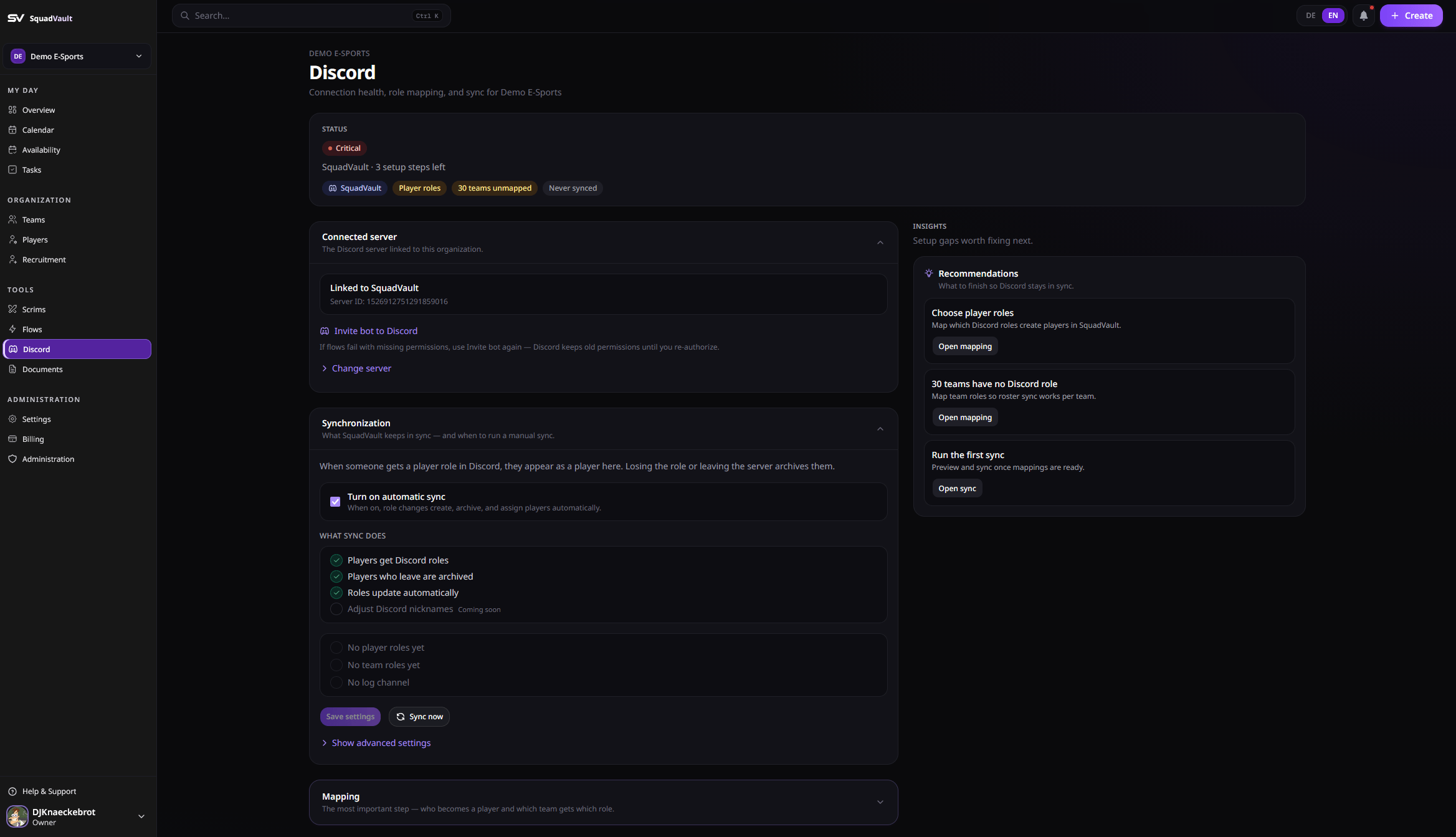
Discord — connection and sync readiness
Connect Discord
1
Invite the bot
Open Discord in the sidebar and invite the SquadVault bot to your server.
2
Connect the server
Select the Discord server you want to link to this organization.
3
Map roles
Map Discord roles to players, staff, and teams so membership stays consistent.
4
Sync
Run a sync (or a dry run first) and optionally set a log channel for sync activity.
Player vs staff roles
- Player roles create and archive players when members gain or lose those Discord roles.
- Staff roles do the same for org-wide staff entries (see Staff in the sidebar). Someone can be both a player and staff.
- Staff from Discord sync is not the same as team staff (coach/analyst assigned on a team). Team staff stays a separate assignment of organization members to a team.
Link players to Discord
On a player profile, link their Discord account so role sync stays accurate. Discord user IDs must be unique within the organization.Tryout applications
When someone receives a mapped player role in Discord, Sync creates or restores the SquadVault player. If an open tryout application in the same organization has the same Discord user ID (pending, reviewing, or shortlisted), that application is automatically marked accepted and linked to the player. Flows listening for tryout.accepted still run.
Team lists
With Pro or Elite, open Team lists under Organization in the sidebar:- Design a roster message with blocks (header, captain, players, MMR, footer).
- Choose embed or plain message, select teams and a Discord channel.
- Set Auto-update: immediately on roster changes, on a schedule (presets or advanced cron), or manual only. New schedules default to the organization timezone.
- Save & publish — SquadVault edits the same Discord messages when the list refreshes.
{{rankEmoji}} / the Rank emoji toggle next to each rank. In list settings you can also sort players by MMR (highest or lowest first) instead of role order.
Custom text variables
Use a Custom text block for freeform lines. Placeholders use{{path}}. Filters like | upper work as in Flows.
Inside the loop:
{{ping}} (Discord mention), {{name}}, {{nationality}}, {{rankEmoji}}, {{rank}}, {{mmr}}, {{mode}} (playlist), {{role}}, {{line}} (formatted rank line from Rank details settings, including emoji when mapped), {{isCaptain}}.
Example:
Invite members from Discord
Staff can invite someone to the SquadVault organization without leaving Discord:- Right-click the user.
- Open Apps.
- Choose Invite to SquadVault.
/org and /team. Invites create a member role; change it later in SquadVault if needed.
Tips
- Use a dry run before the first live sync on a large server.
- Keep SquadVault as the source of truth for roster changes, then sync outward.
- Restrict Discord settings to admins so mappings are not changed by accident.
- Create, update, publish, and refresh of team lists appear under Discord in the Audit log.
- Automate role assignment and welcome messages with Flows.
- Check overall connection health from Integrations.
Discord Sync requires Discord on your plan. Team lists require the
team_liste feature (Pro / Elite). See Billing if the page is locked.