

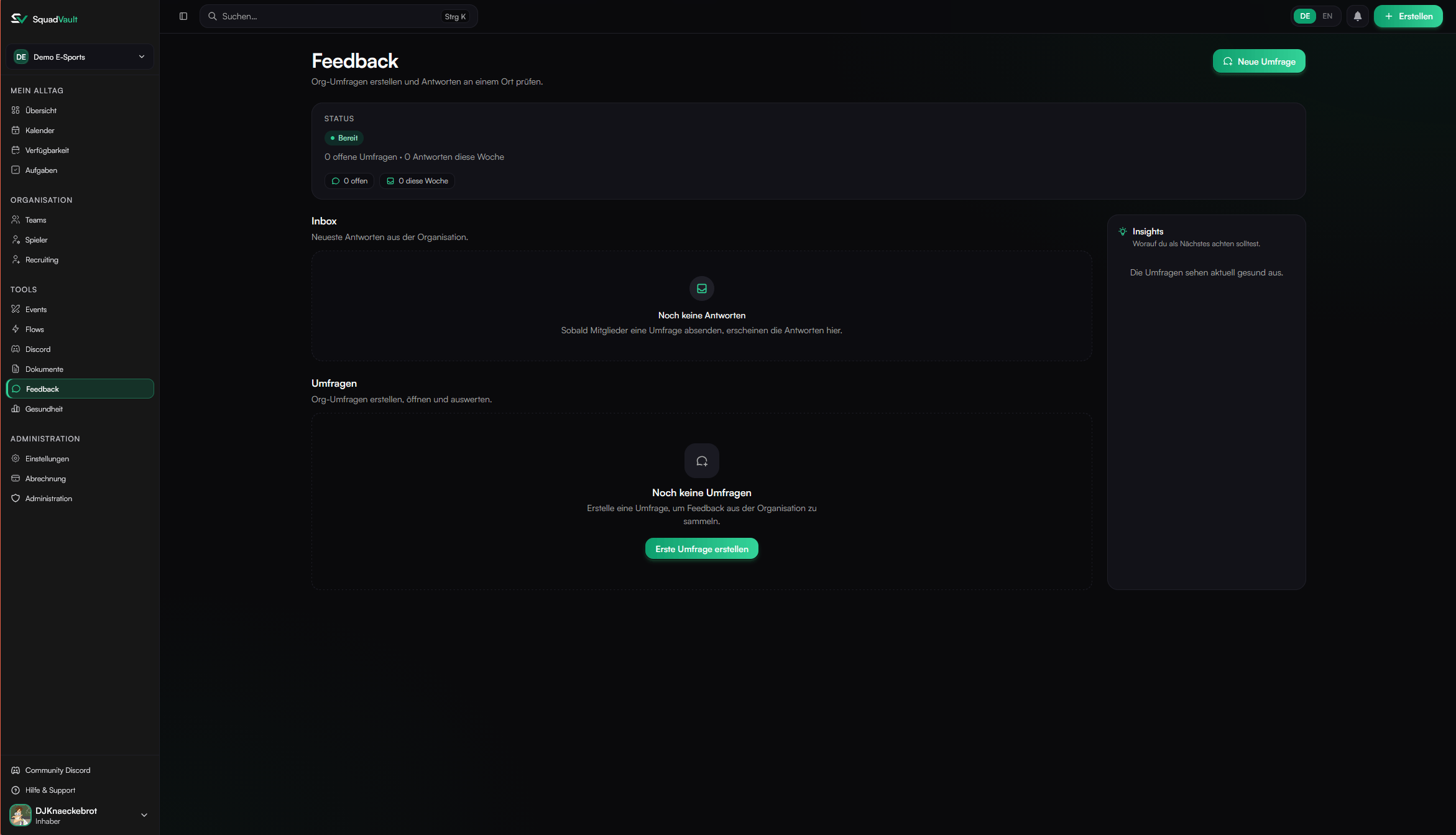
Feedback — status, inbox, and surveys
How the page is organized
- Status — Open surveys and response health this week.
- Work
- Staff (owners, admins, managers) — Inbox of latest answers, then the full survey list.
- Members — Open surveys waiting for your response.
- Insights — Up to three recommendations (low response rate, closing soon with gaps, no responses yet, or a survey waiting on you).
Create a survey
- Open Feedback and click New survey (requires create permission and the Feedback feature on your plan).
- In the Builder tab, set title, description, optional close time, privacy (SquadVault or your own URL), and access:
- Members only — Signed-in organization members.
- Public — Anyone with the link (no SquadVault account).
- Add questions (short text, long text, number, date, checkbox, select, rating).
- Save changes with the unsaved-changes bar at the bottom.
- Click Open survey when you are ready to collect answers.
Respond
- Members open a survey from Feedback and submit once while it is open.
- Public respondents use
/survey/{orgSlug}/{formId}(or the copied public link from the builder). - After submit, answers are read-only for that person.
Public cover image (plan feature)
With custom survey branding on your plan, public surveys can show one cover image above the title:- Set access to Public.
- Upload an image (JPEG, PNG, WebP, or GIF · max 5 MB).
- Choose Show on public page or hide it without deleting the file.
- Save. Uploading a new image replaces the previous one.
Tips
- Keep surveys open only while you are actively collecting answers.
- Prefer a few required questions over long forms.
- Use insights to chase low response rates before a close date.
- Delete a survey only when you no longer need its responses — deletion cannot be undone.