

Scrim or Tournament) with a dedicated workspace. They still appear on the calendar, but clicking opens the workspace instead of a giant edit form.
Event management is plan-gated (same feature as Scrims). If you see an upgrade banner, open Billing.
Open Events
- Open Events in the sidebar.
- Filter by All / Scrims / Tournaments if needed.
- Review upcoming workspaces — readiness, warnings, and availability at a glance.
- Click a row to open Mission Control.
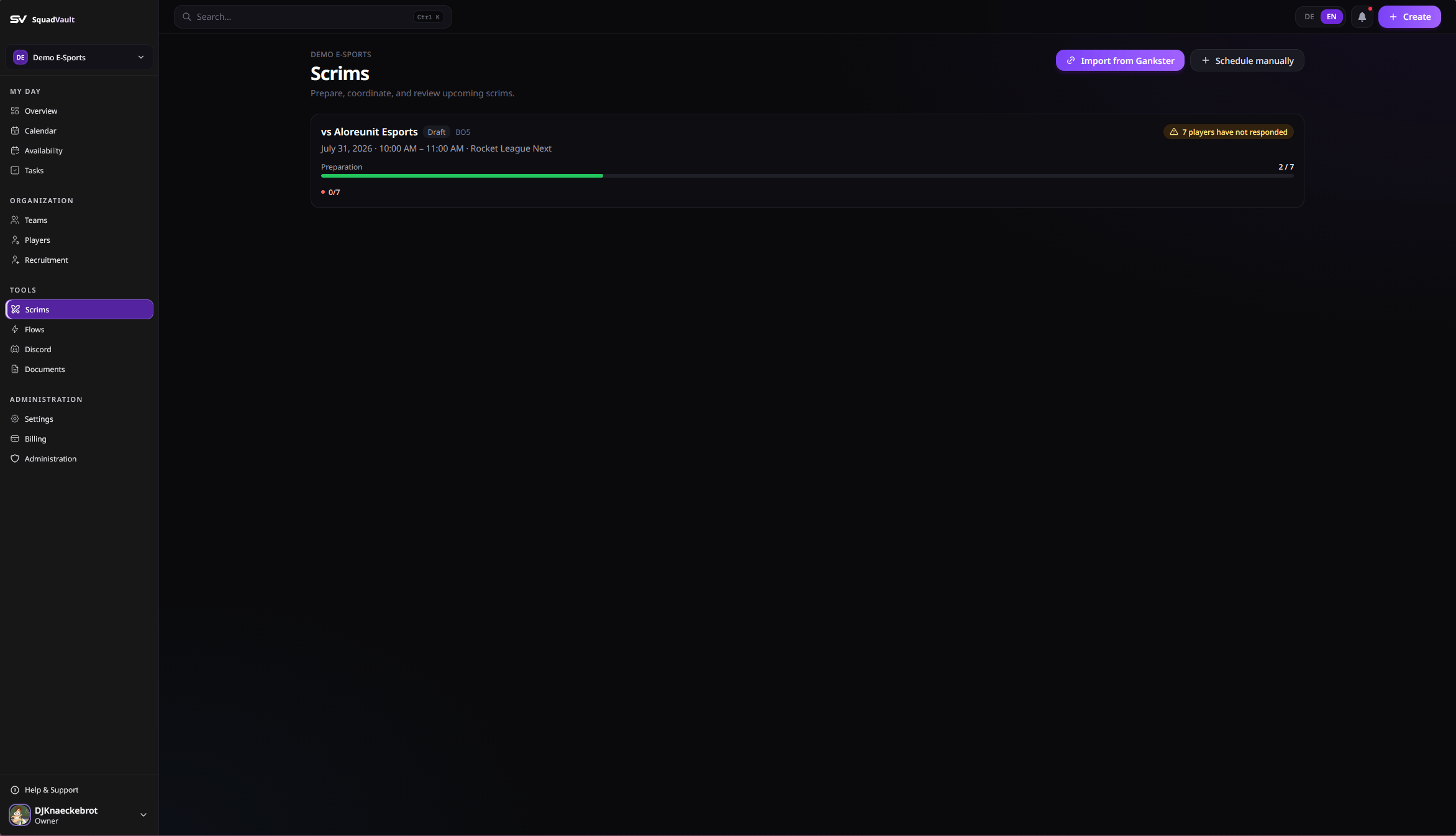
Events list — readiness at a glance
Create an event workspace
Import from Gankster (scrims)
Primary path when the booking already lives on Gankster:- Click Import from Gankster.
- Paste a Gankster team or scrim link.
- Confirm opponent, team, format, and time.
- Create the workspace — SquadVault opens Mission Control for that booking.
Schedule a scrim or tournament
- Click Schedule scrim or Schedule tournament.
- Enter a title, team, and time.
- Create the workspace — you land directly in Mission Control.
Mission Control
The workspace answers three questions in order: Is everything ready? → What should I do? → What’s supporting context?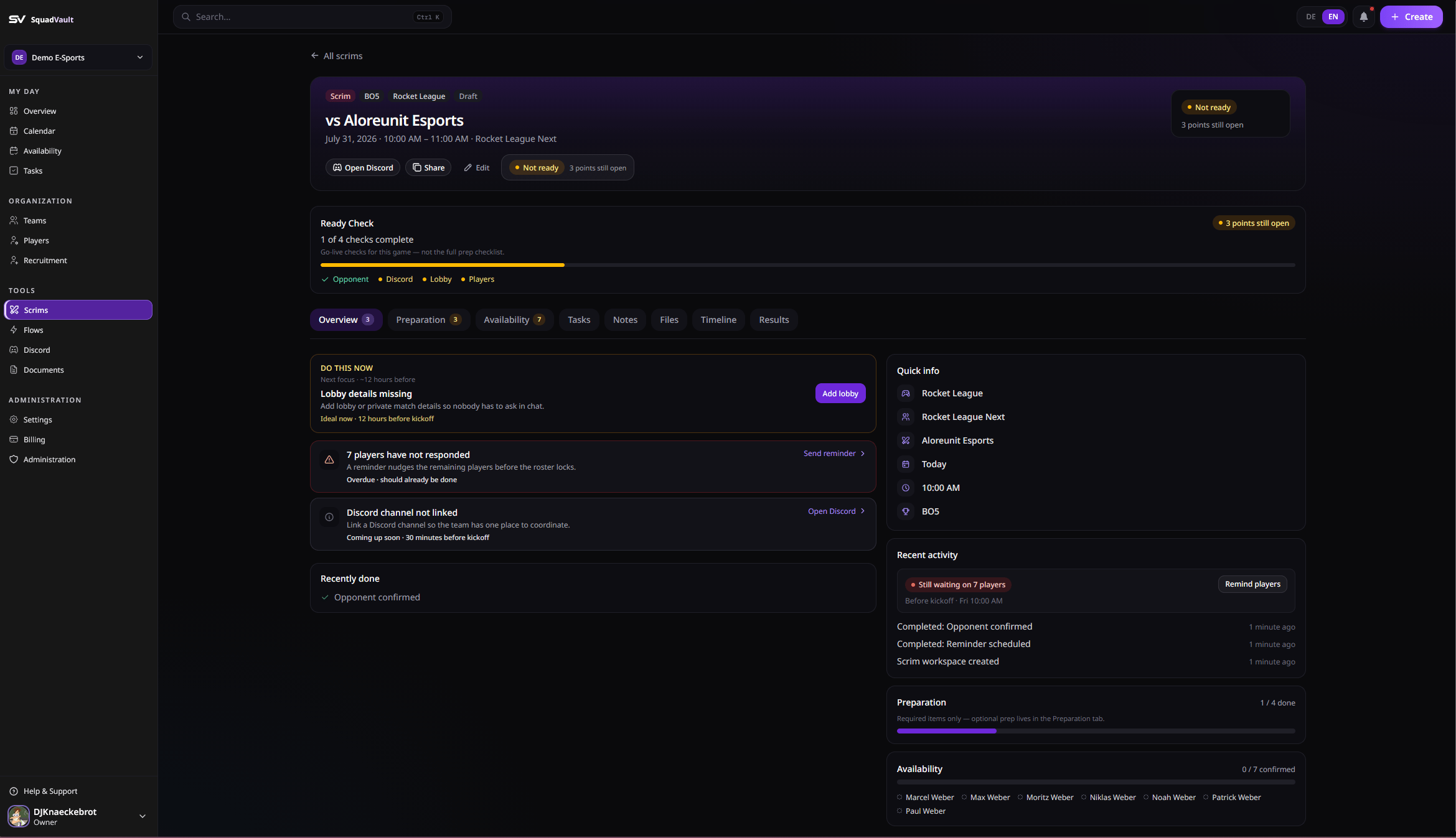
Event Mission Control
Overview
- Needs attention — missing opponent (scrims), stage (tournaments), lobby details, tournament code, unanswered RSVPs, and similar gaps
- Preparation and availability progress
- Suggested next actions (remind players, start, record results)
Preparation
Track the checklist that makes the event ready: tournament code, lobby / private match details, maps, coach, and custom items. Completing signals (for example adding a tournament code) can auto-complete matching checklist rows.Availability
See who accepted, maybe’d, or has not responded. Use Remind players when responses are still missing. Full RSVP handling lives under Calendar and availability.Tasks, notes, and files
- Link prep tasks (code, maps, VOD upload) from Tasks
- Capture opponent notes and focus points
- Attach playbooks or strategy docs from Documents
Timeline and results
Review the timeline of prep and status changes. After the match, record outcome, score, notes, and VOD.Tips
- Prefer Import from Gankster when the booking already exists there — less double entry.
- Keep lobby details and codes in the workspace so Discord chat stays quieter.
- For tournaments, set the stage / round early so readiness stays accurate.
- Link Discord channels on the team so voice readiness resolves automatically.